Why InterCore? · 01
One box per sensor
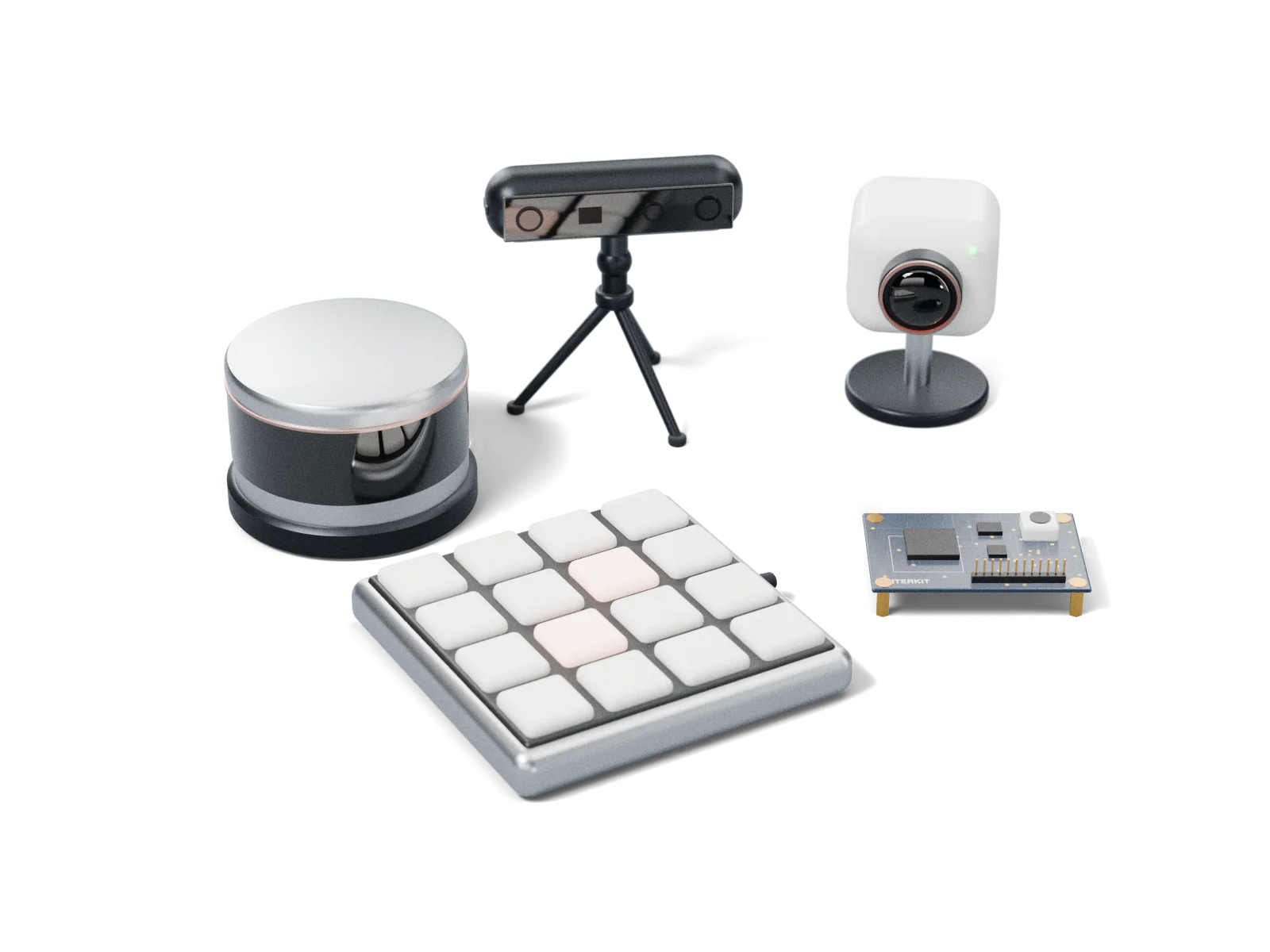
LiDAR, depth camera, camera, button array, or an InterKit module made for the project: each gets a box of its own. More devices means more boxes, and nothing else changes.
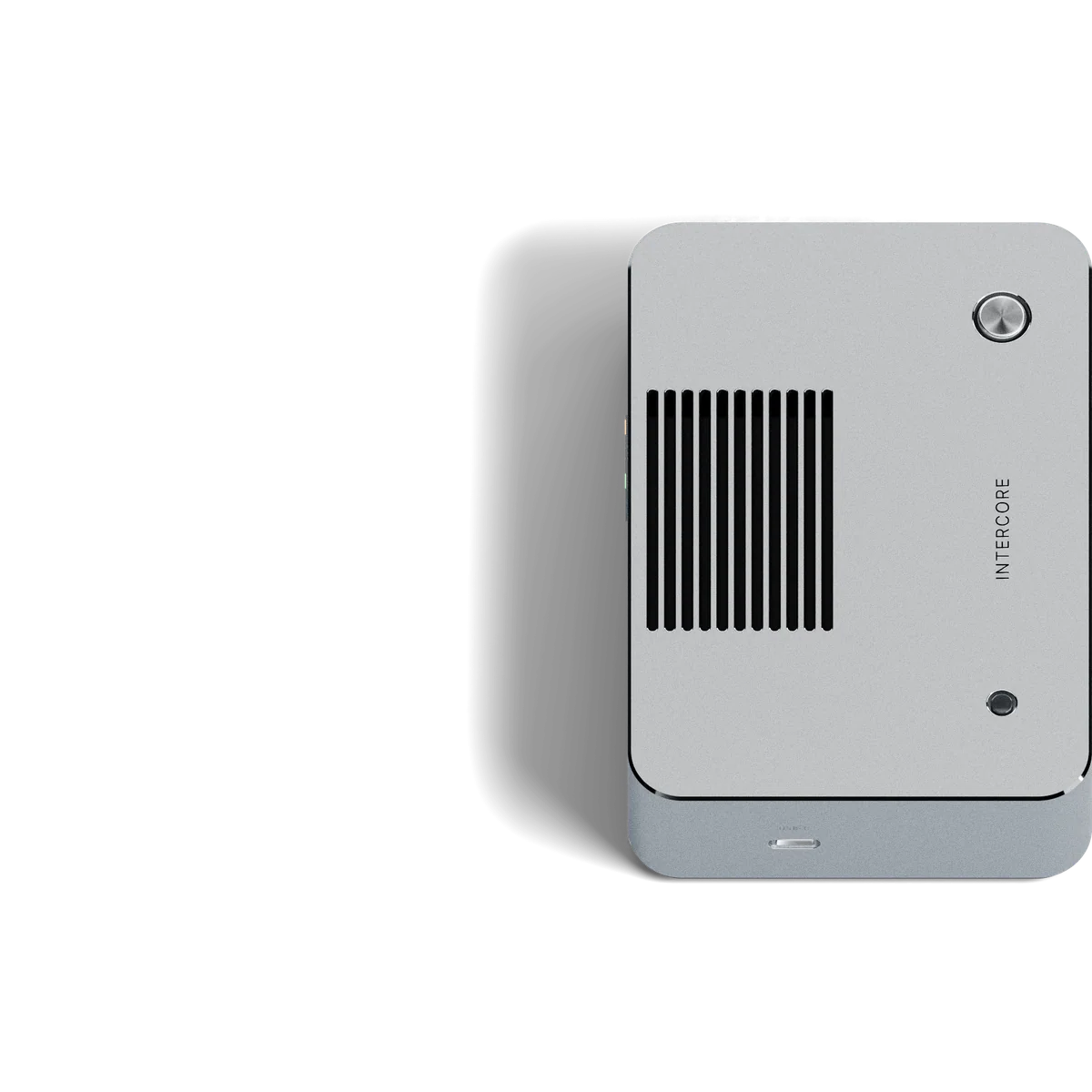
InterCore
One box. One cable. Any sensor in, any application out.
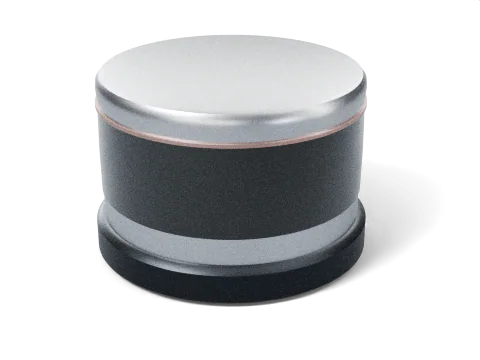
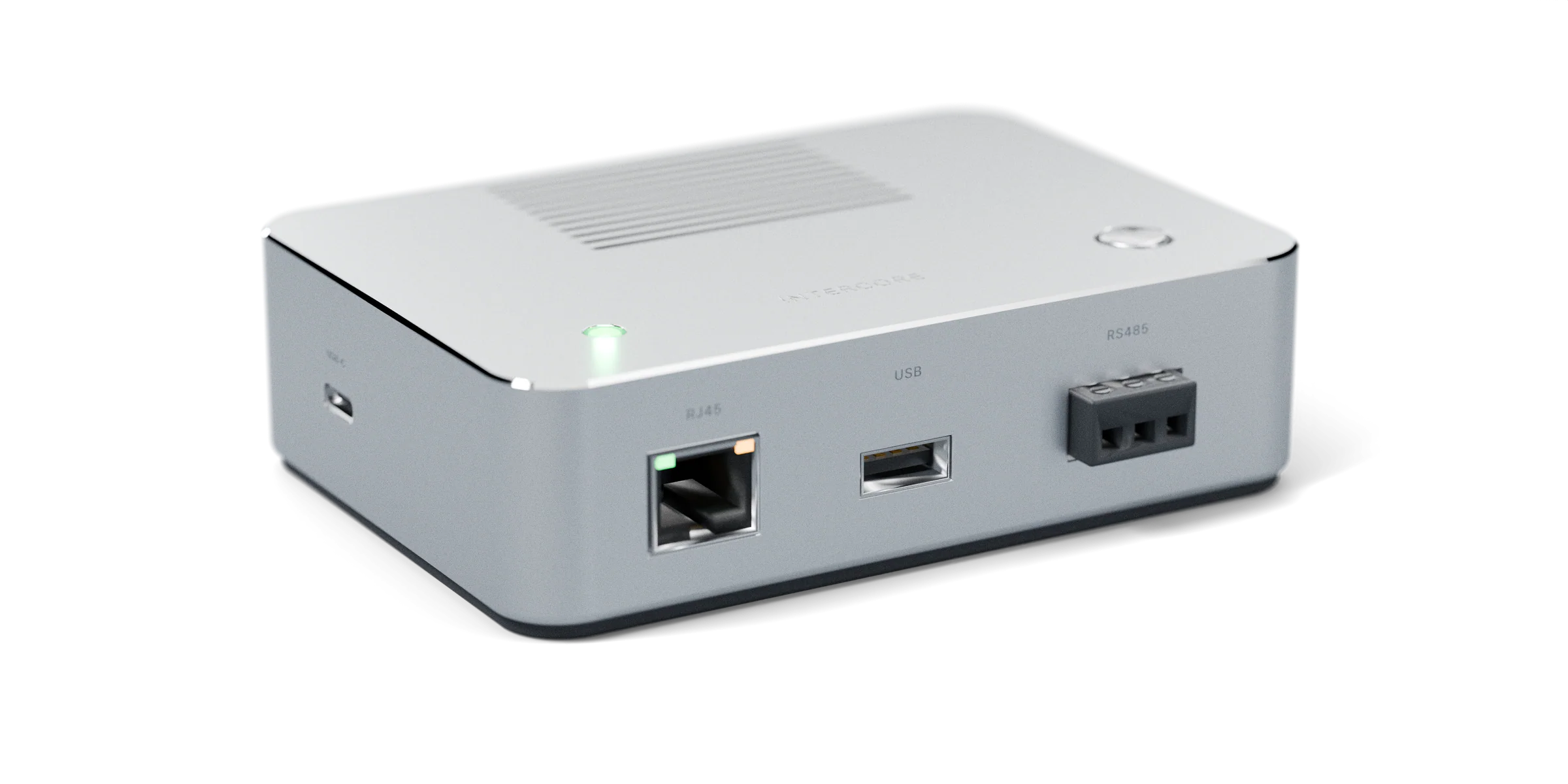
InterCore is the box every sensor plugs into. It powers the sensor over one cable, carries its data to a PoE switch, and hands it to CoreSpace, the control software on the host, which puts every device in the same coordinate space and sends the result to whatever runs the show.
LiDAR, depth camera, camera, button array, or an InterKit module made for the project: each gets a box of its own. More devices means more boxes, and nothing else changes.
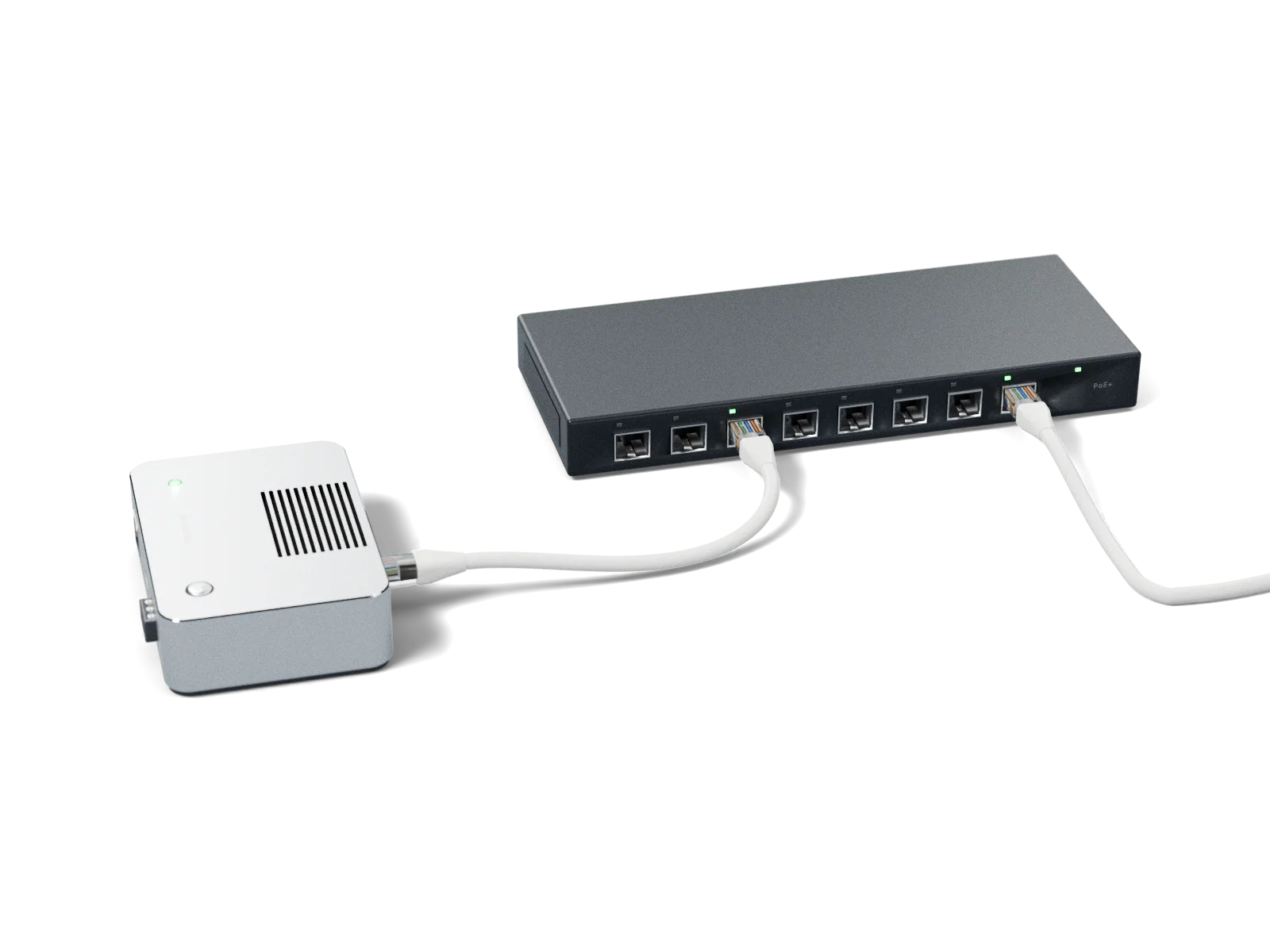
Power and data on the same line. The box takes PoE from the switch and powers the sensor from it; a LiDAR draws 7.7 W, a ToF camera 2.5 W.
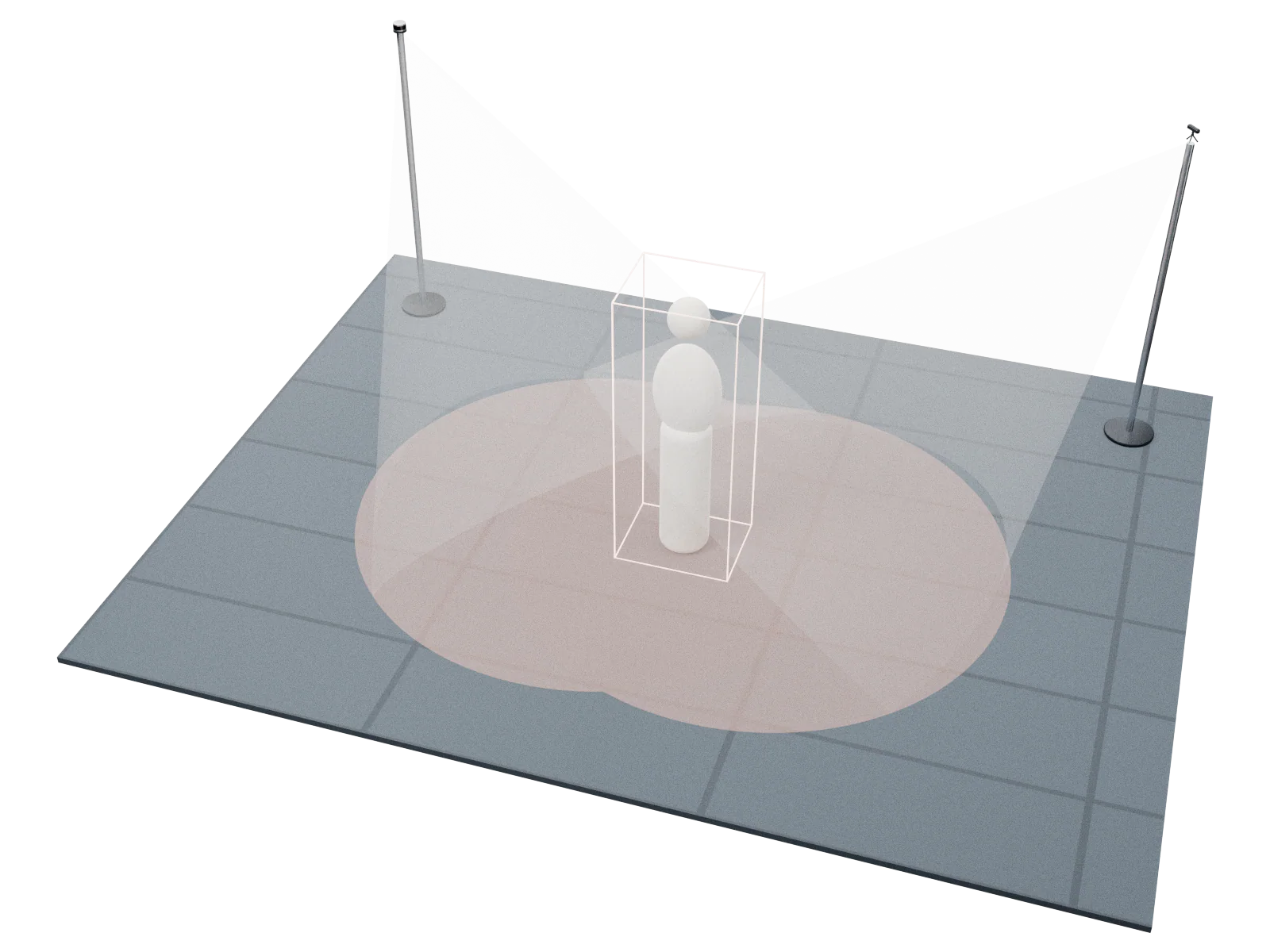
Place each box where it is mounted, aim it, and let CoreSpace align the sensors to one another.
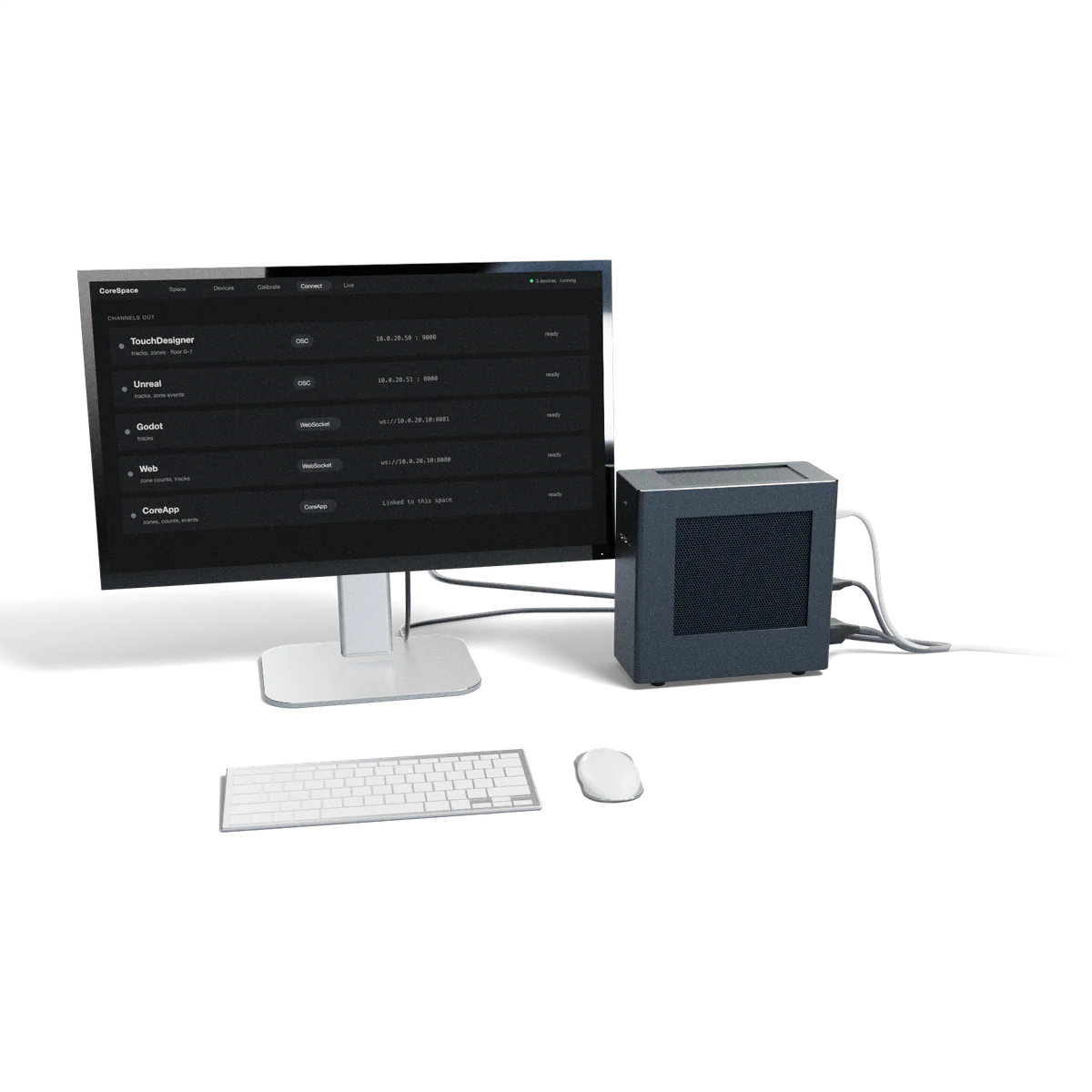
Tracks, zone counts and events go out as channels over OSC and WebSocket, in venue metres or a display surface’s 0–1. TouchDesigner, Unreal, Godot, the browser and CoreApp, our application platform, take them as they come.
One box per sensor. One cable. Every device in one coordinate space, sent to any application.
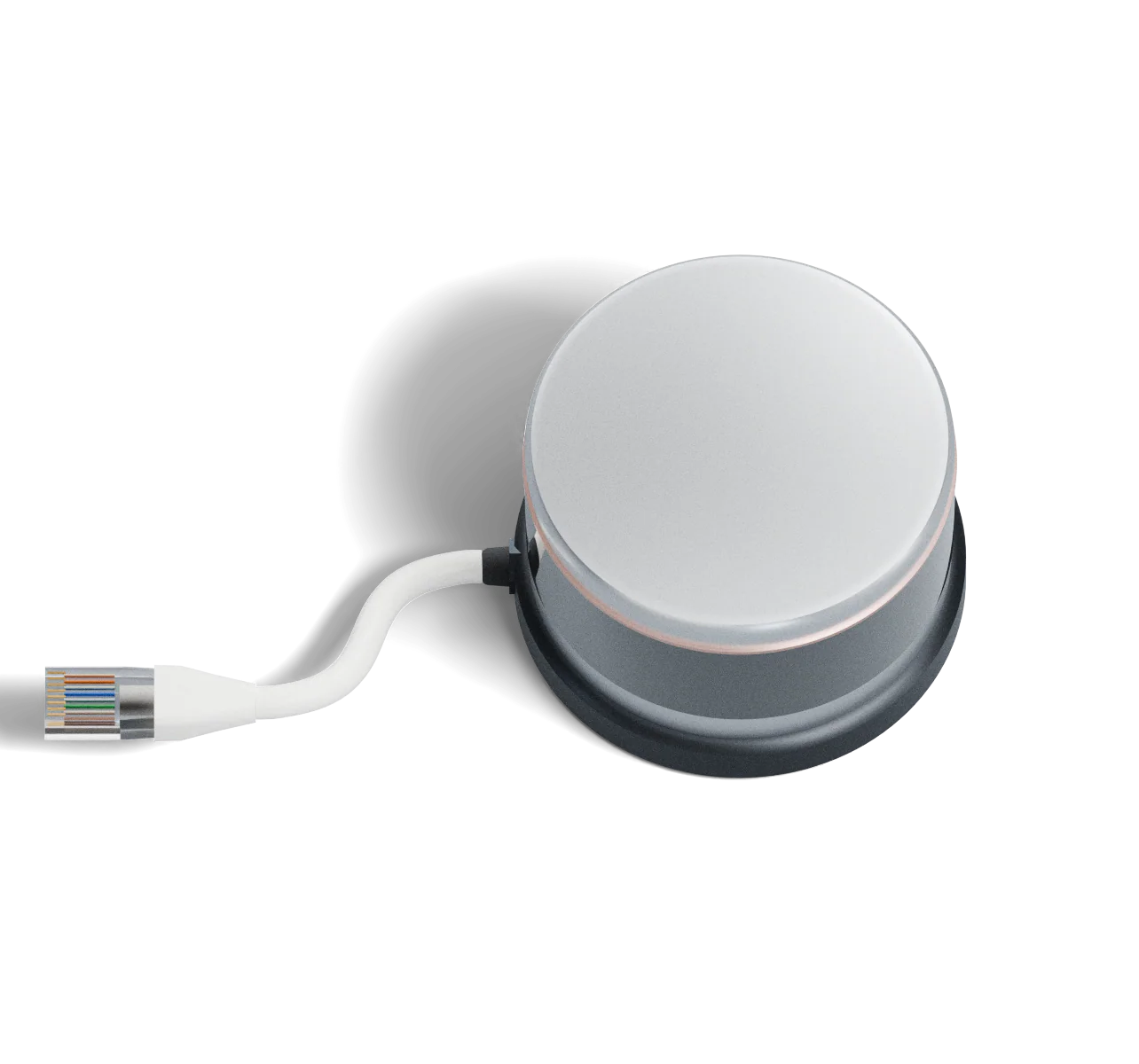
A LiDAR reads the room as a ring of distances. It plugs into the RJ45 input; InterCore powers it, 7.7 W, and carries the scan.
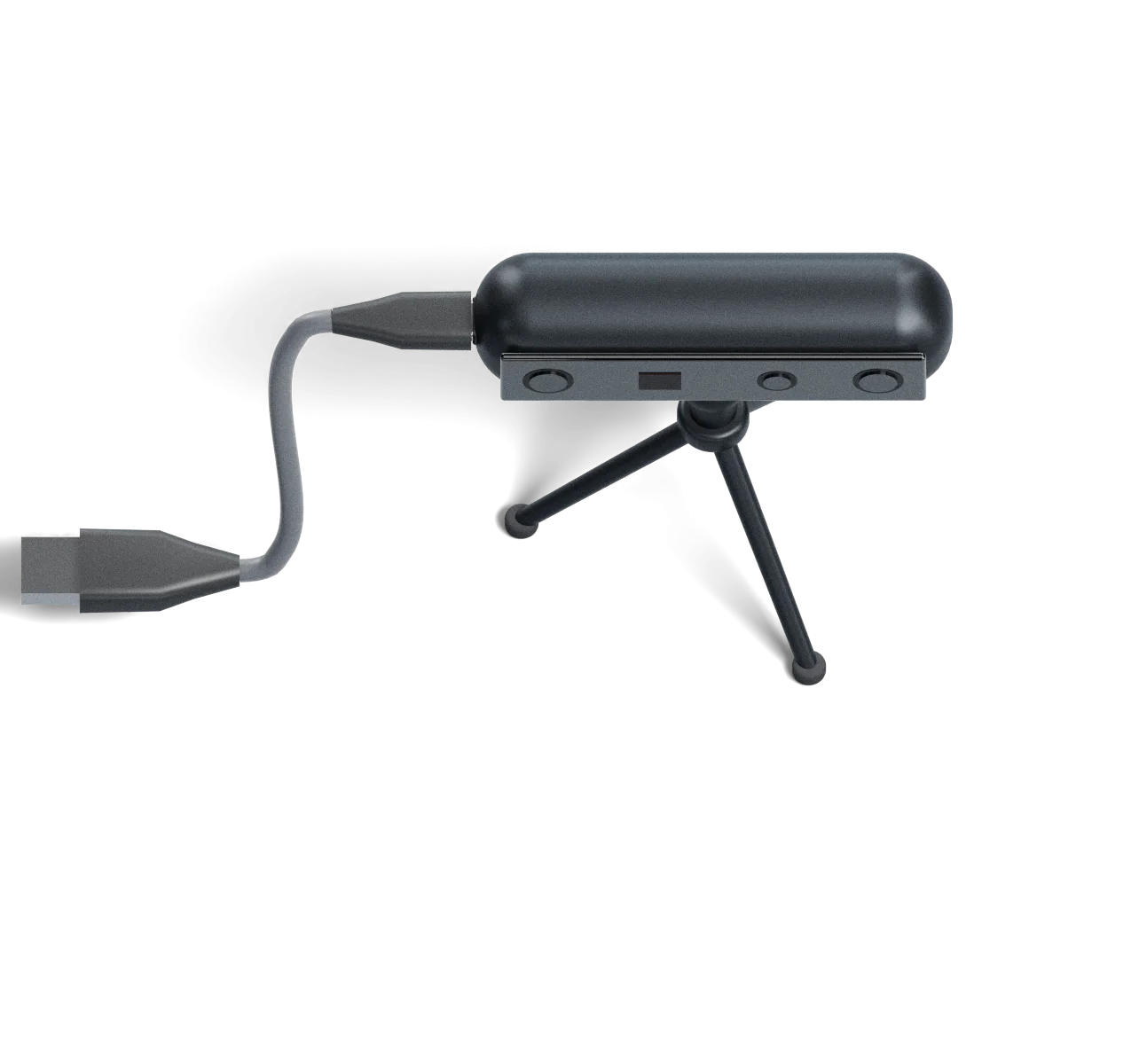
A depth camera sees a cone of the room. It plugs into USB-A; the same box powers it, 2.5 W, and carries the depth frames.
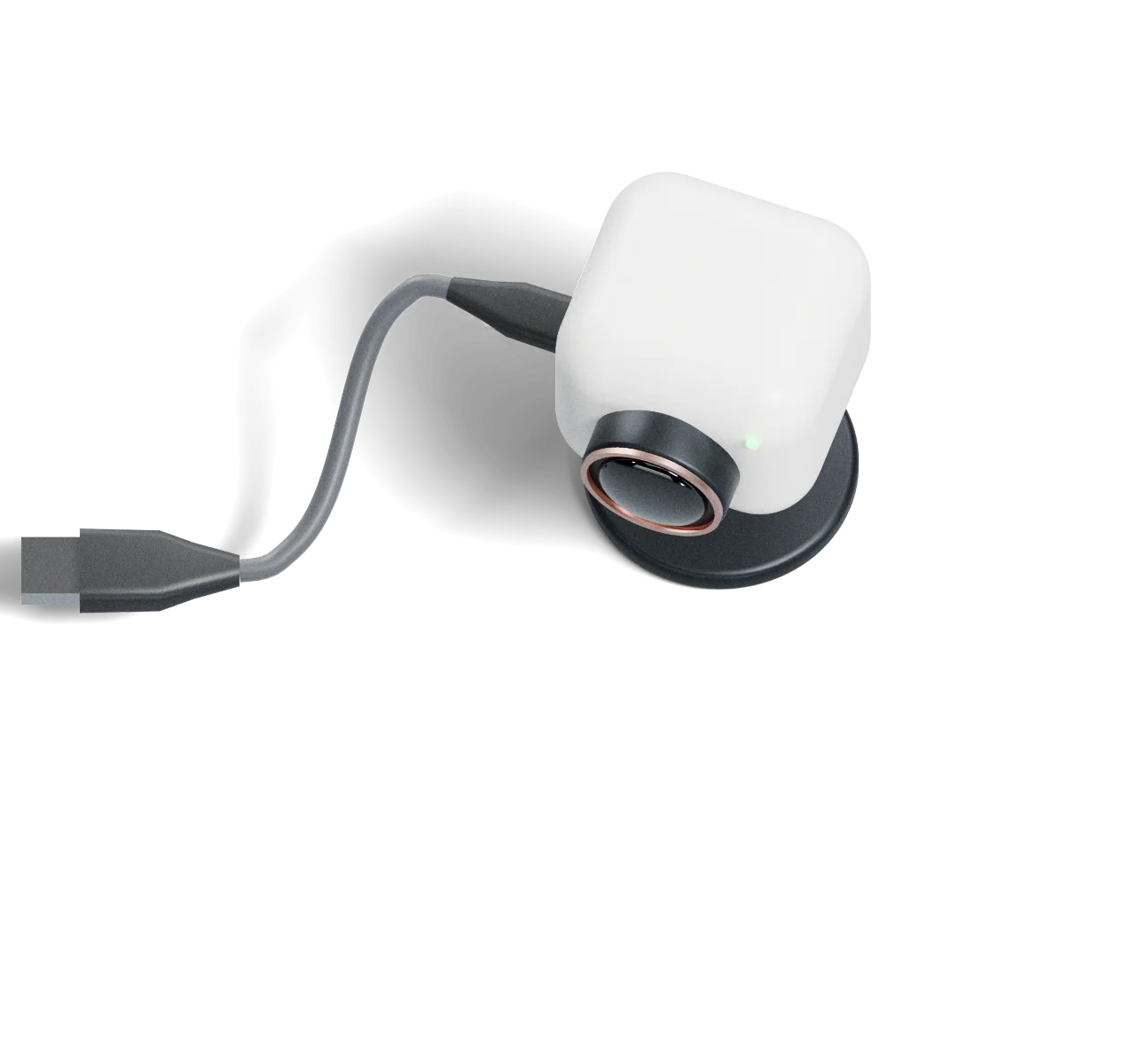
An ordinary camera has no depth. The picture stays on site; only anonymous positions leave the box.
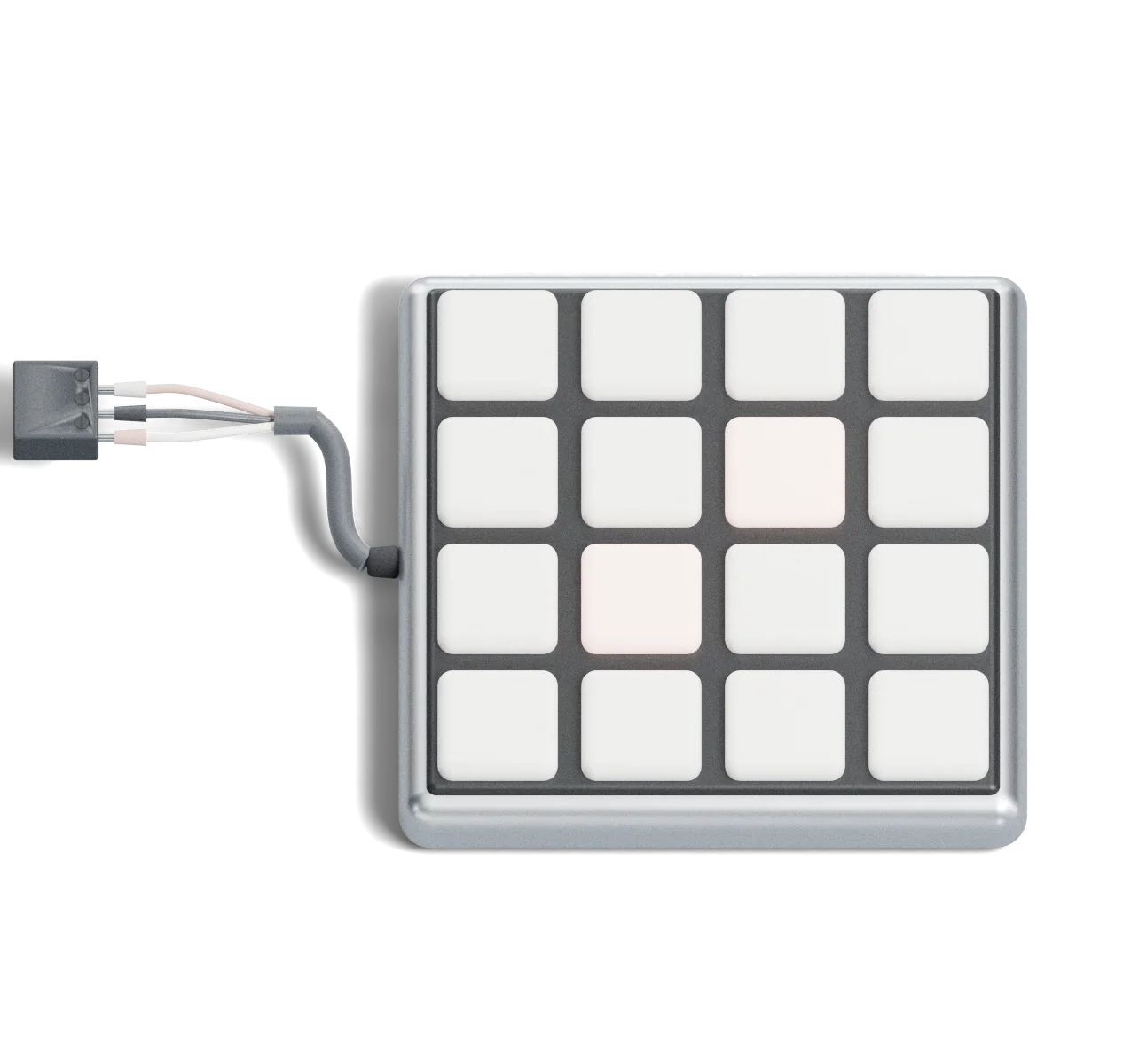
A 16-key array on RS485, one of the InterKit modules. It has no position to set, so it goes from plugged in to online in two steps.
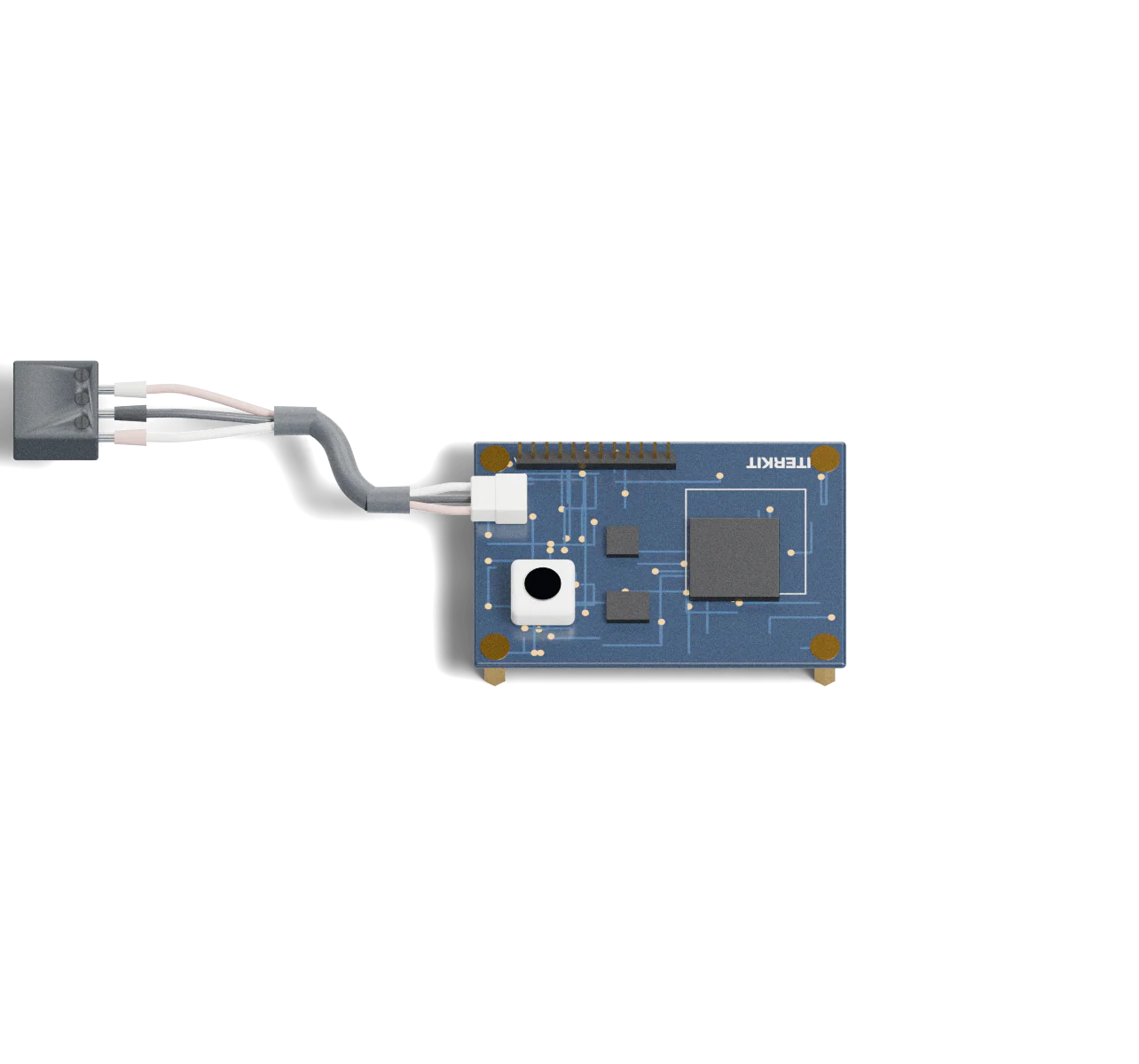
A small board made for one job: a floor pad, a break beam, a knob, an NFC reader, or a relay that switches a light or a prop. It plugs in the same way, one box each, and shows up in CoreSpace as a device with its own values.
Each sensor plugs into an InterCore of its own. Each InterCore runs one network cable to a PoE switch, which powers it and carries its data. The switch connects to the host computer on site, where CoreSpace puts every device in one coordinate space. For example, a 16-port PoE+ switch with a 240 W budget takes 15 boxes, its 16th port up to the host.
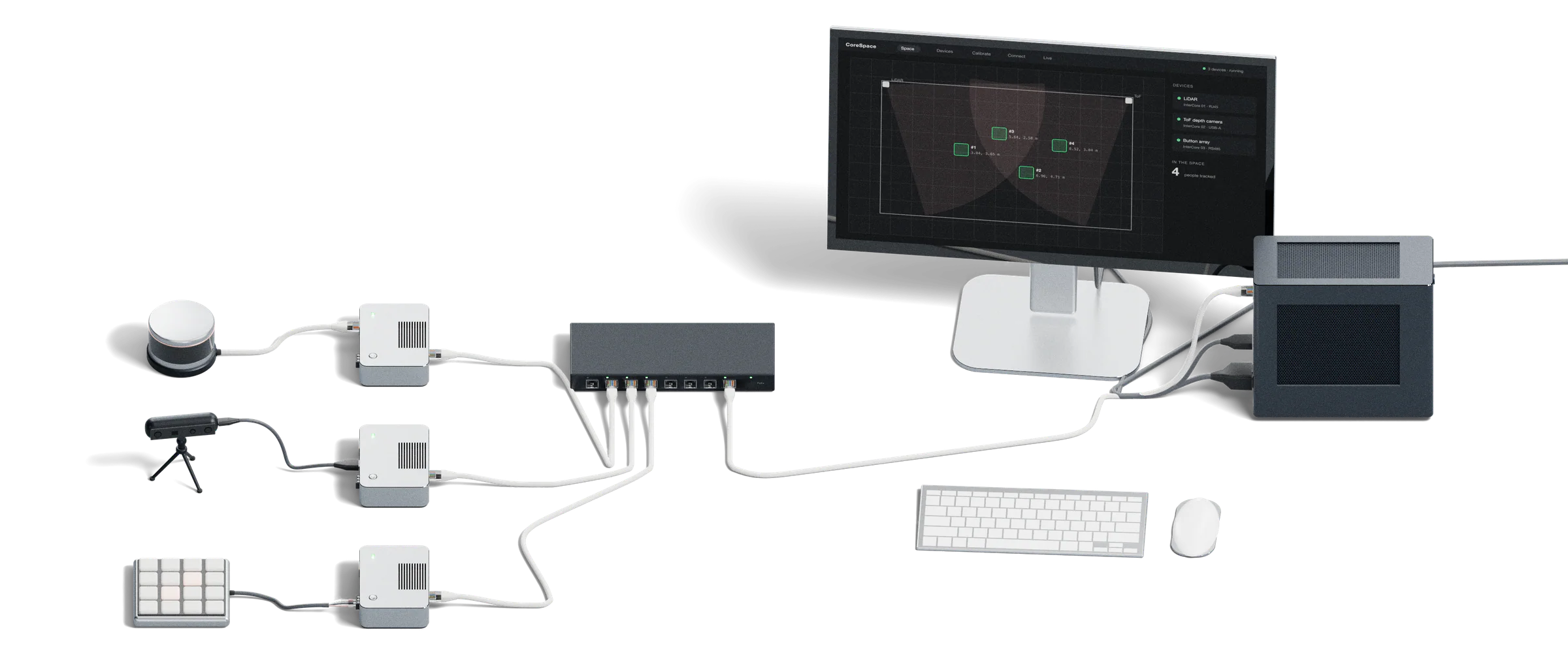
CoreSpace sends it on: tracks, zone counts and events as channels over OSC and WebSocket, to whatever runs the show.
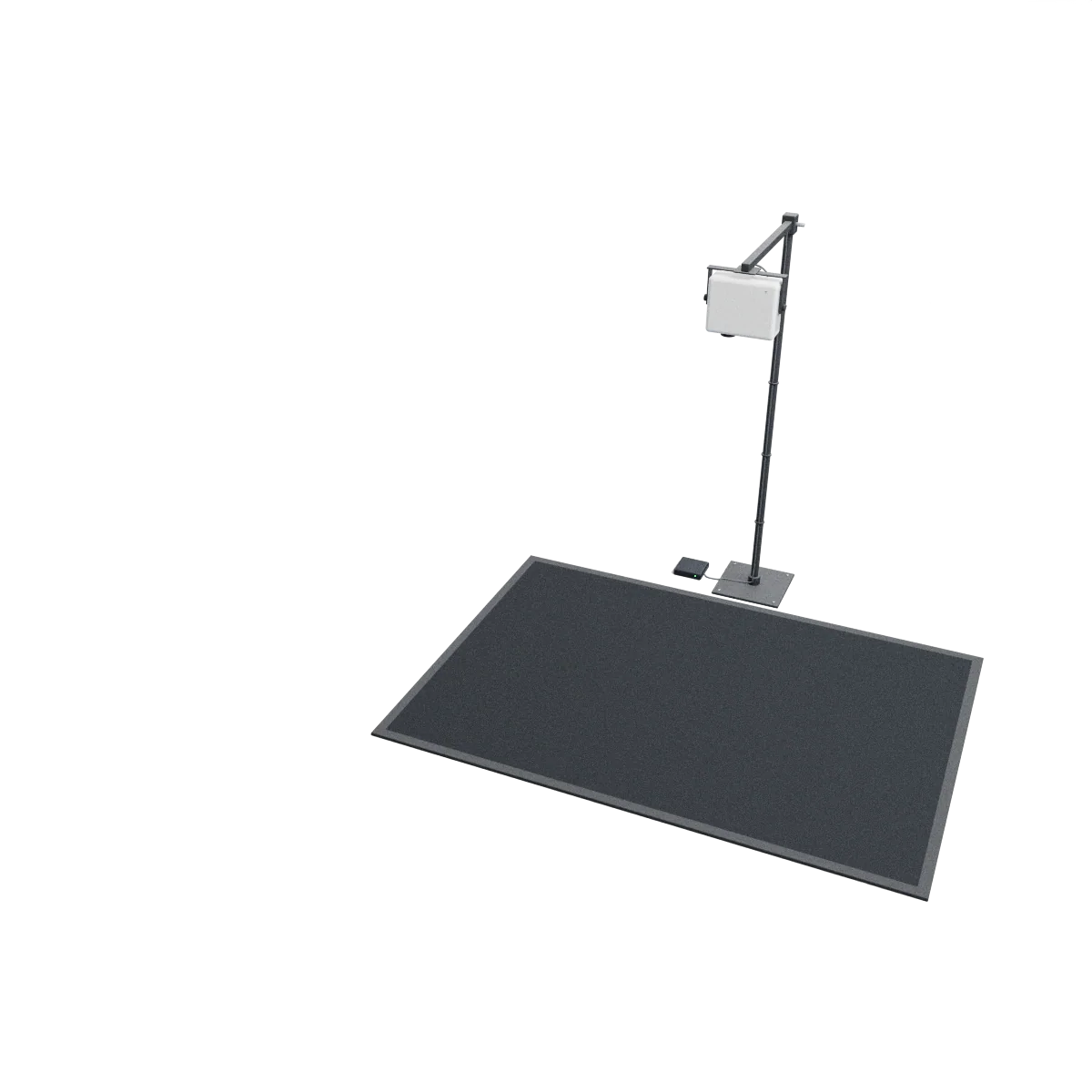
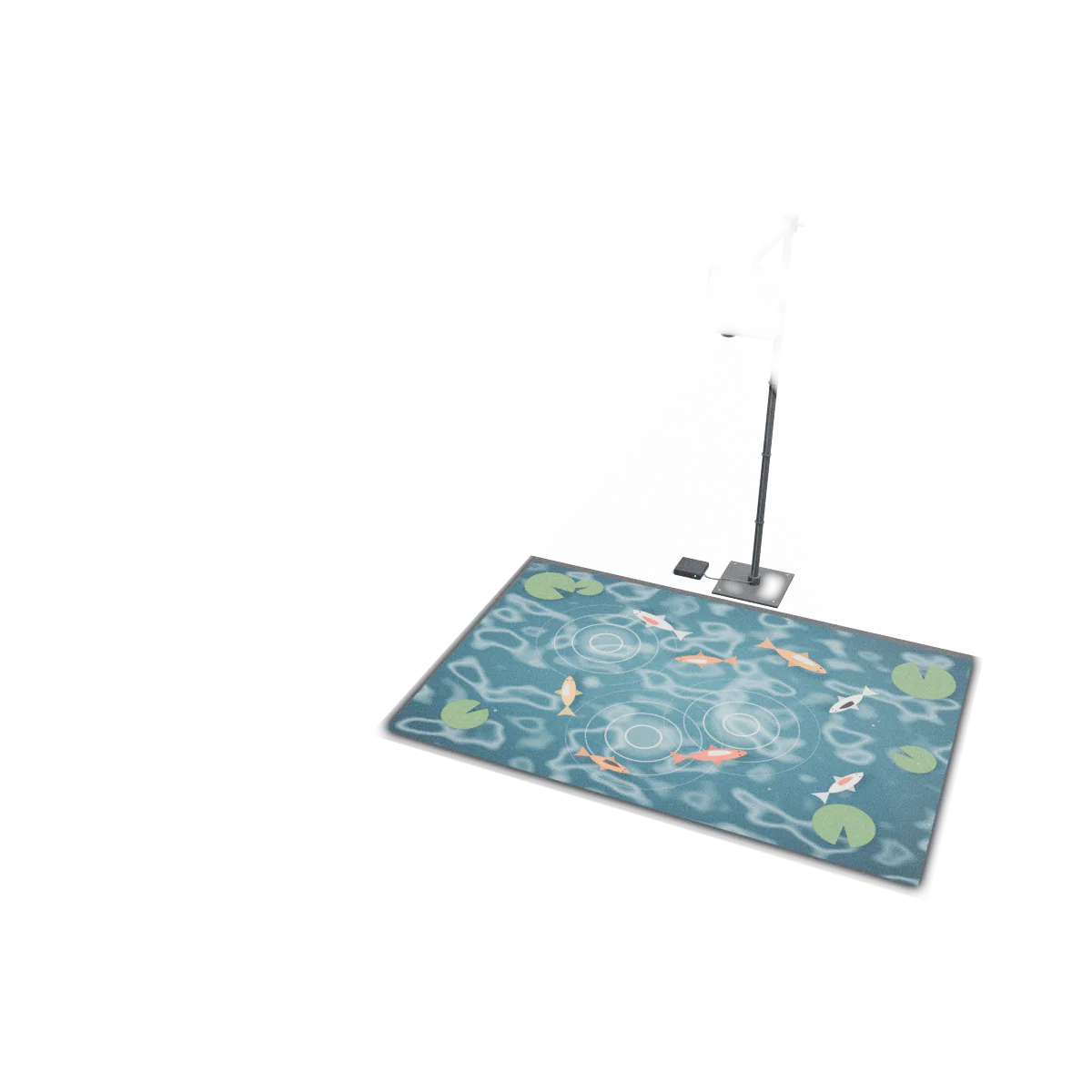
For example, an interactive floor in a gallery: wherever visitors stand, the pond ripples and the koi swim clear.
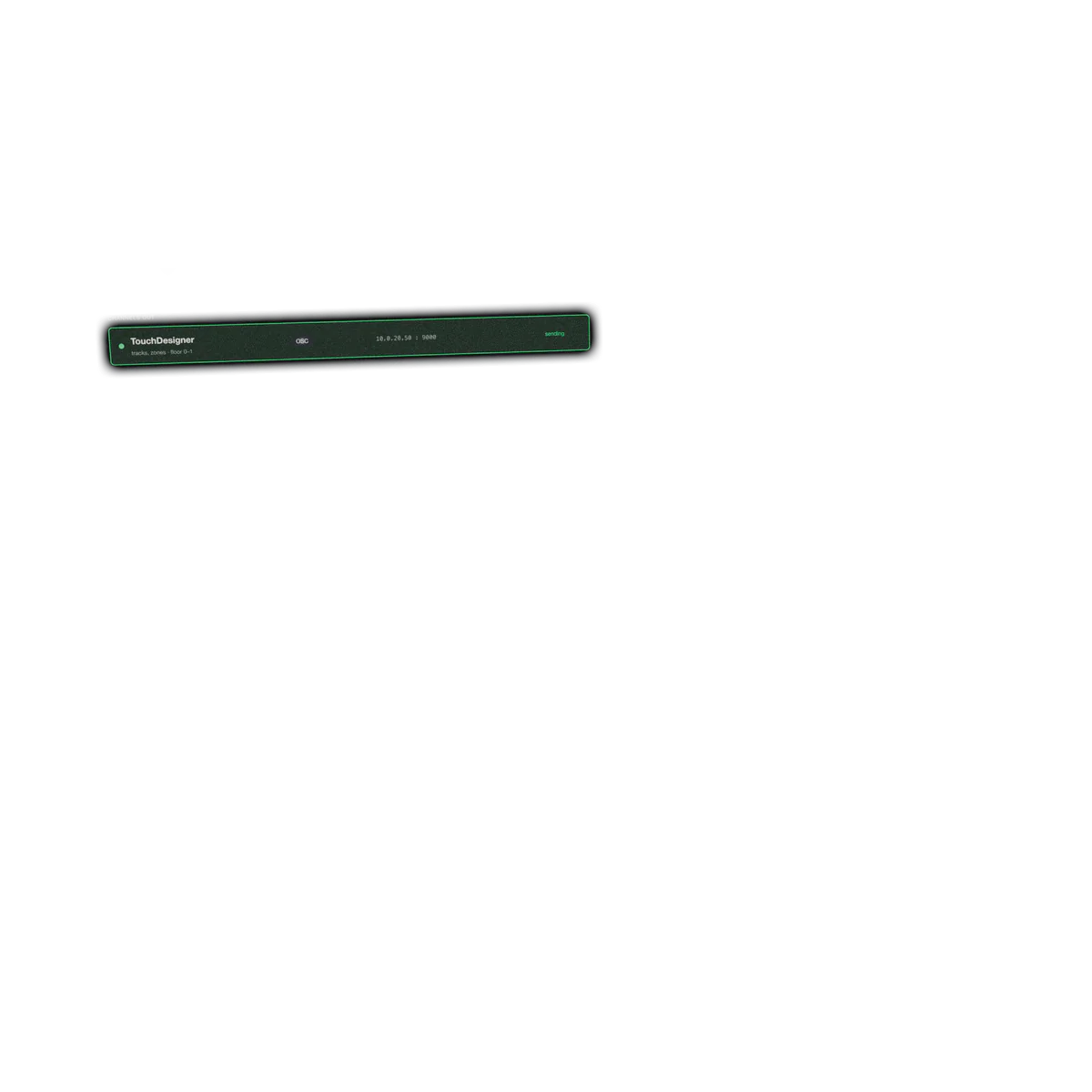
TouchDesigner takes it with OSC In. Positions arrive in the floor’s own 0–1, so nothing needs converting.
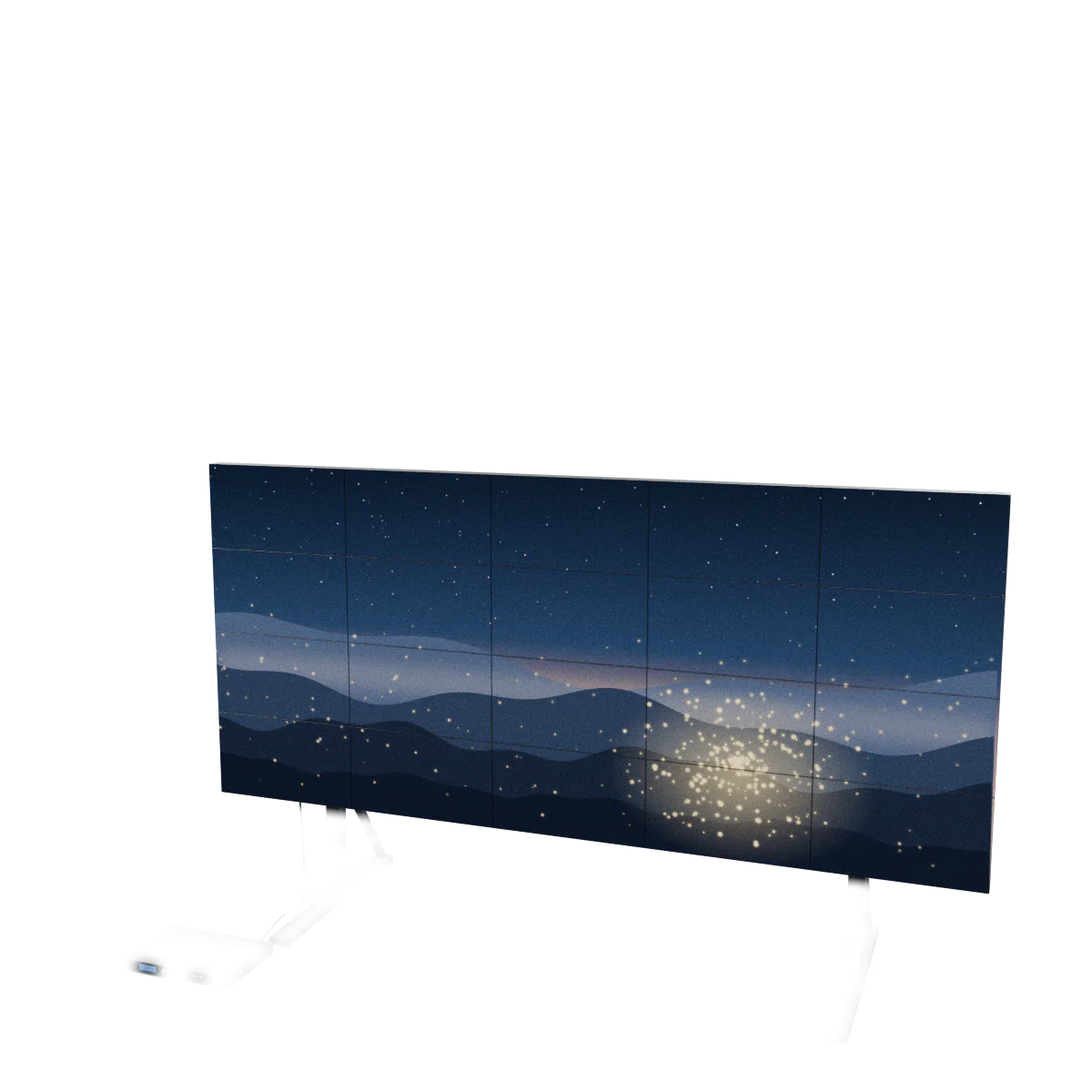
For example, an LED wall in a pop-up store: as someone walks up, the fireflies in the scene gather in front of them.
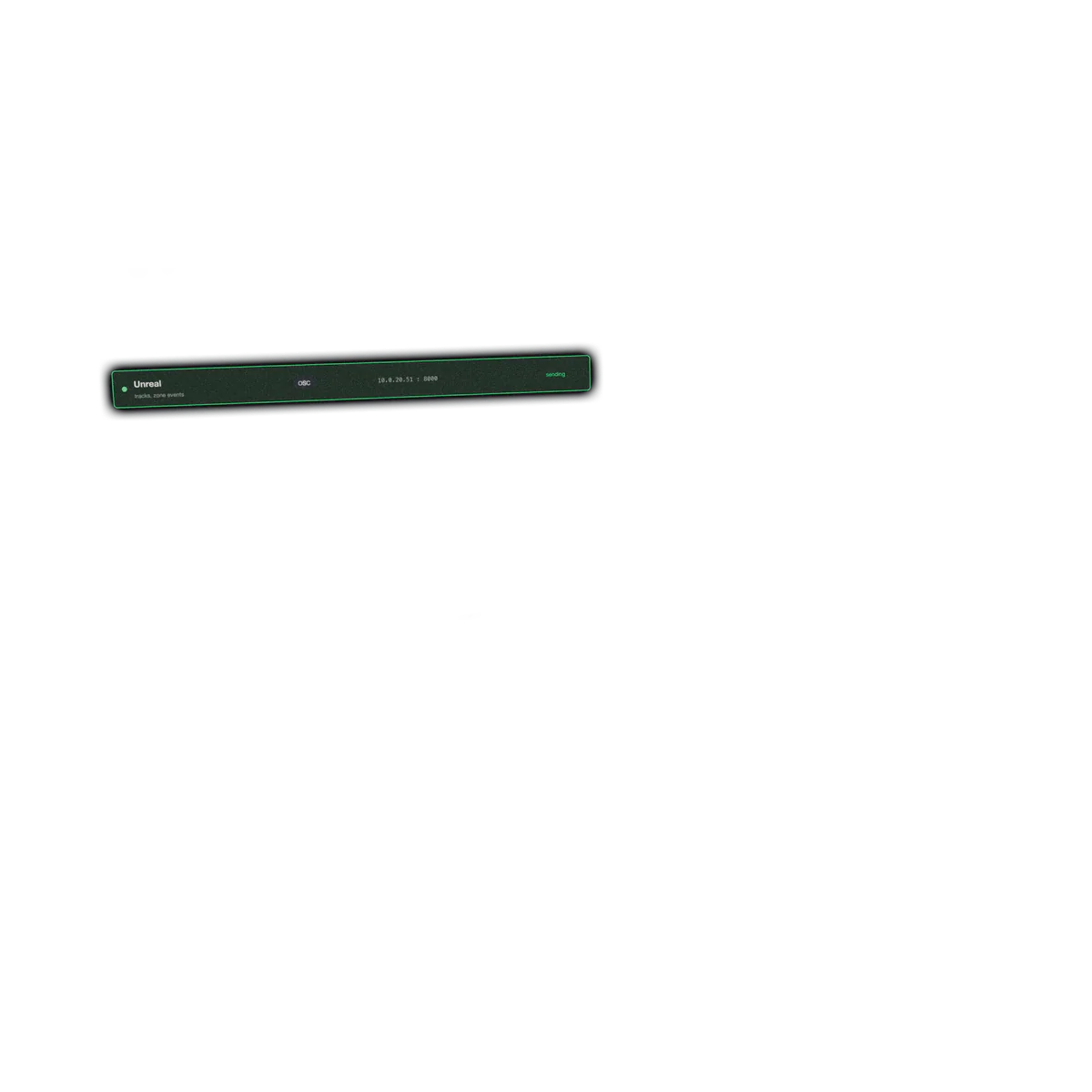
Unreal’s OSC plugin takes the same channels; the tracks and zone events drive the scene.
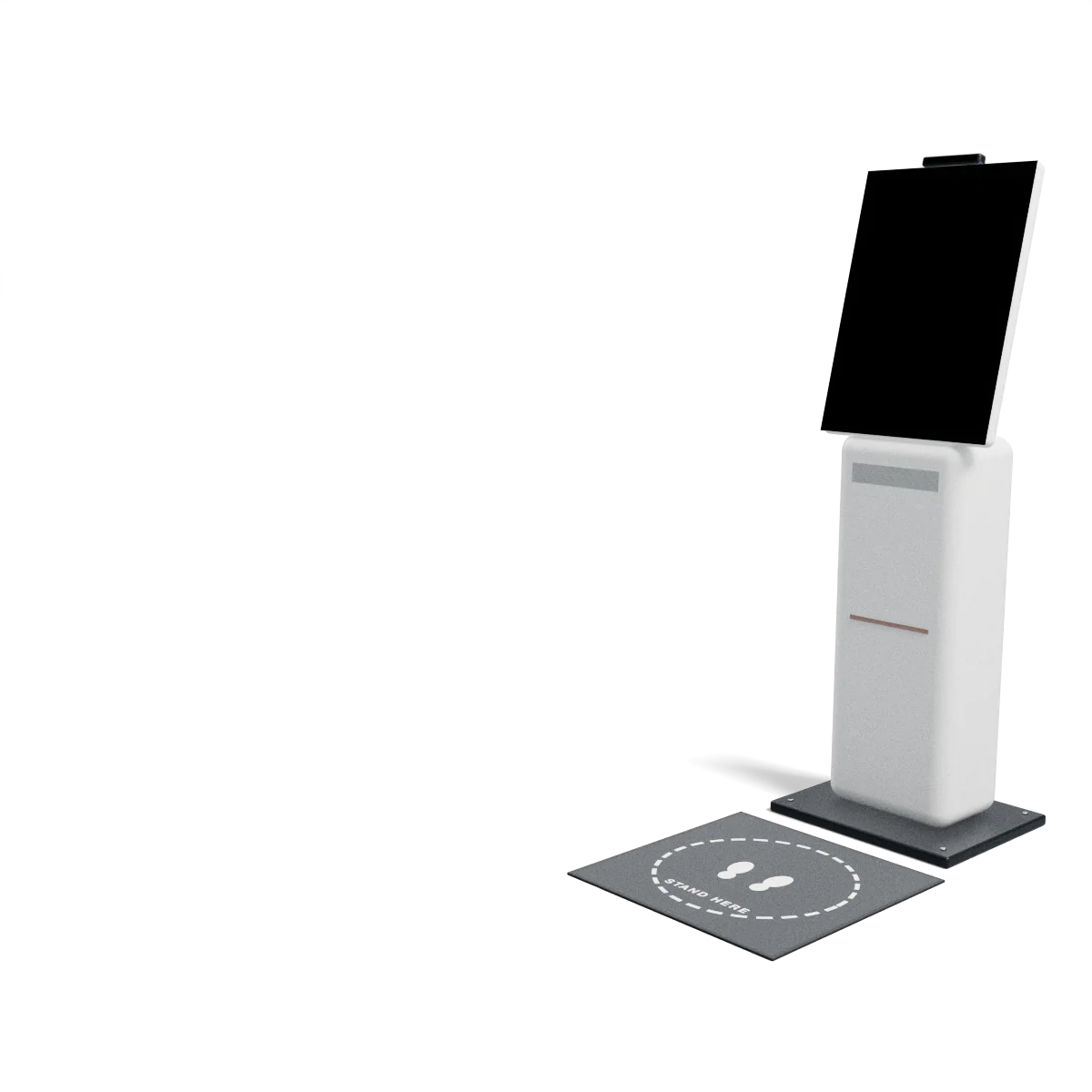
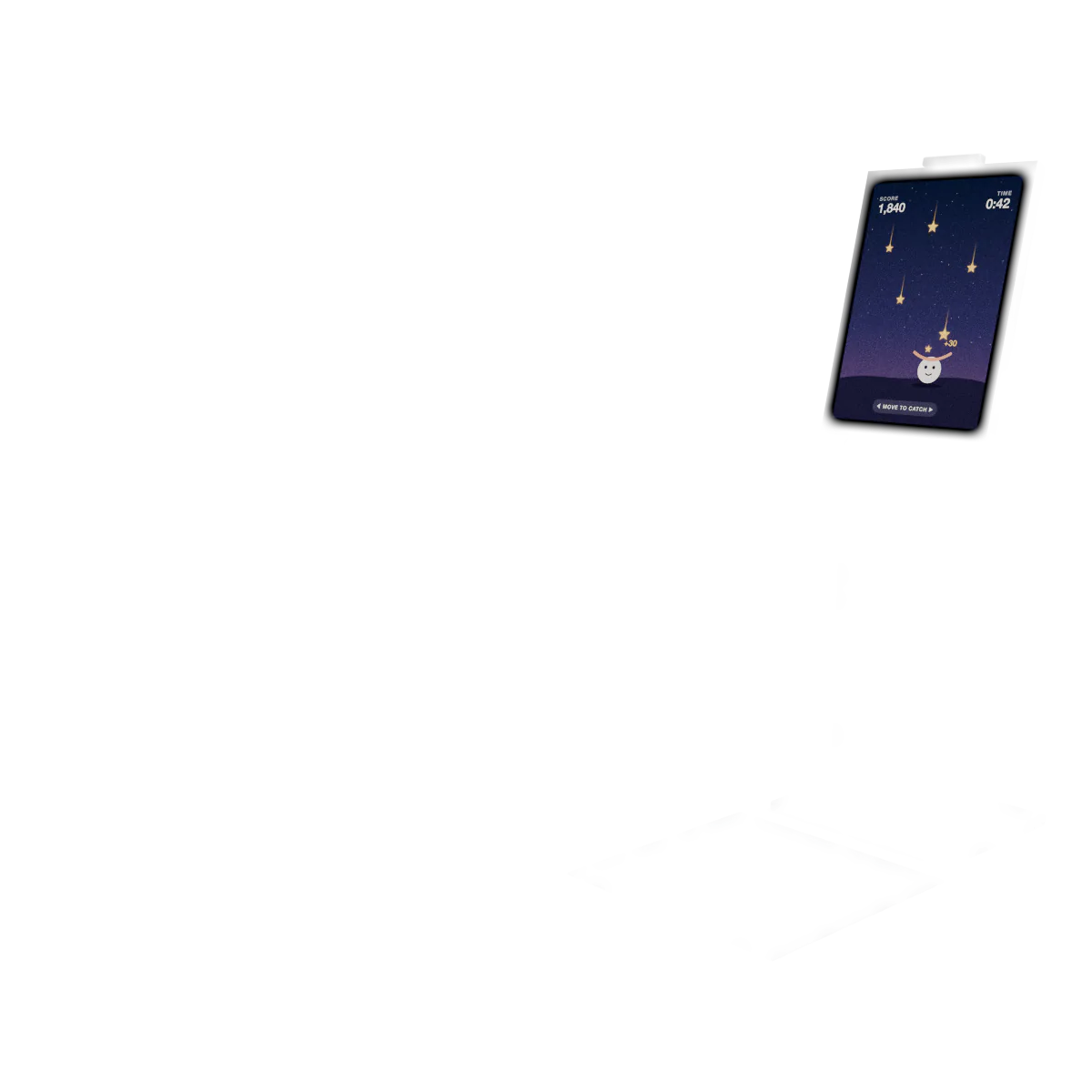
For example, a motion game in a science centre: players step left and right in front of the kiosk to catch the falling stars.
Godot connects with WebSocketPeer and gets one JSON message per update.
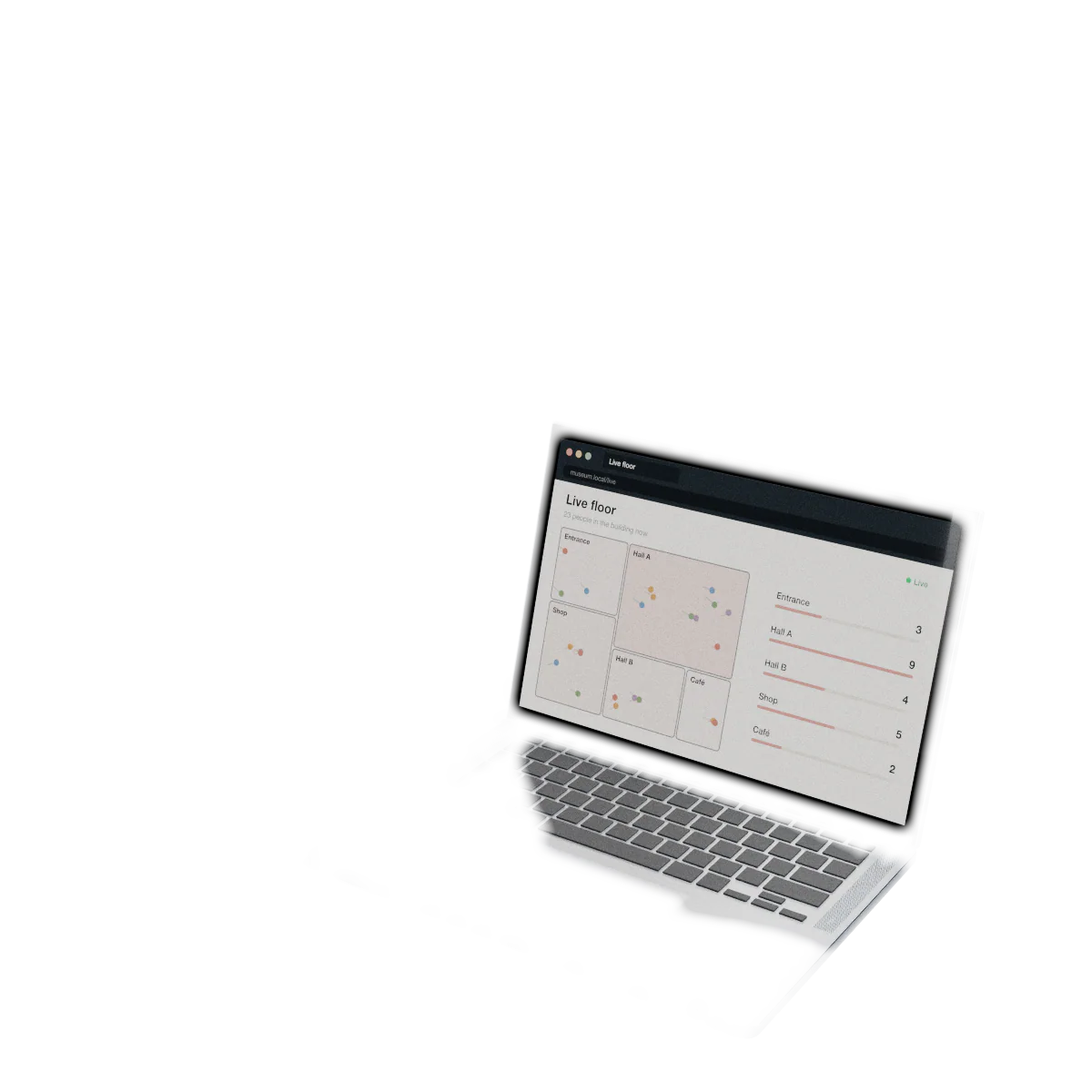
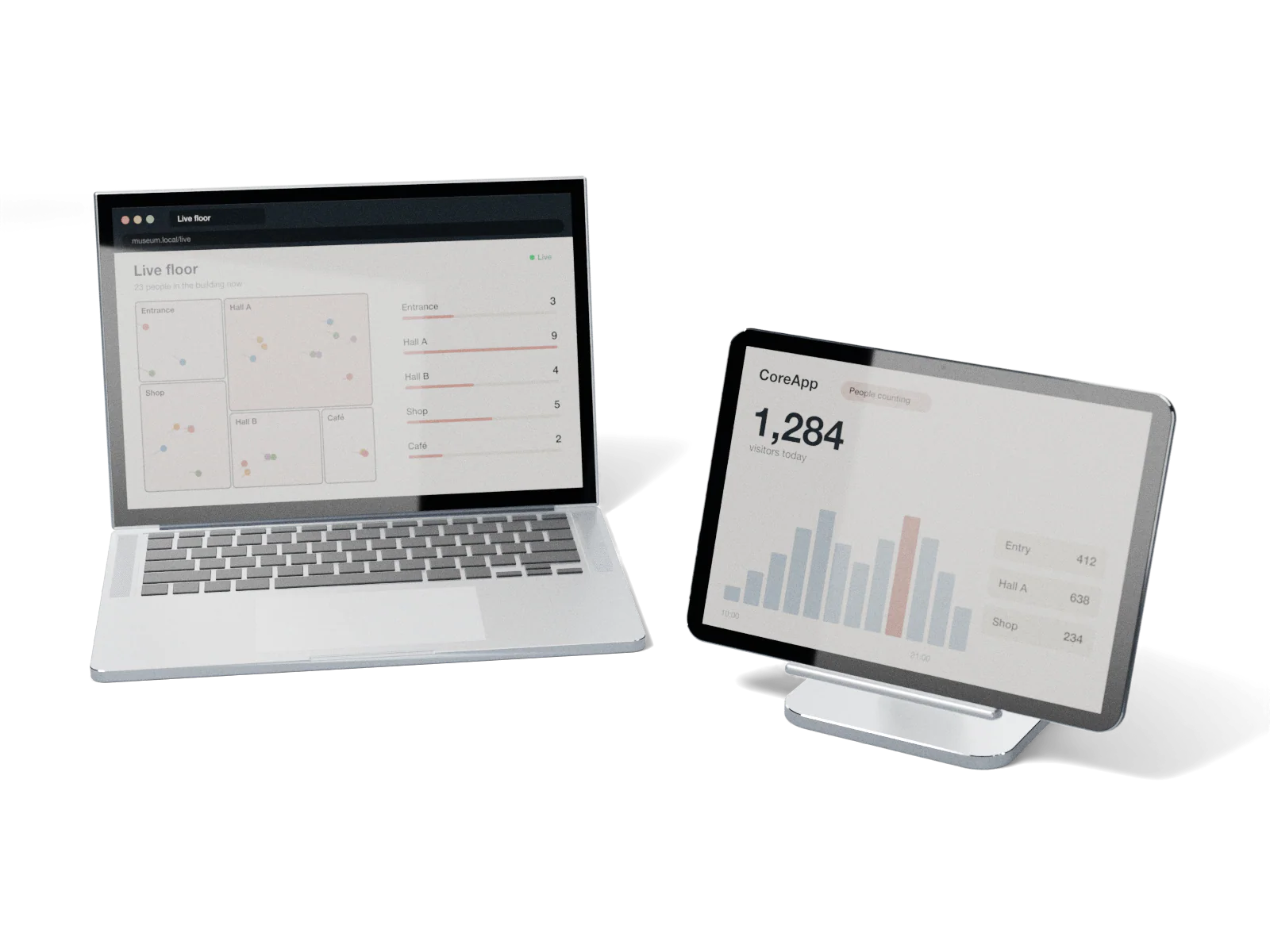
For example, a museum’s live floor map: open a browser and see how many people are in each room right now.
Any page takes it with a WebSocket in the browser, one JSON message per update.
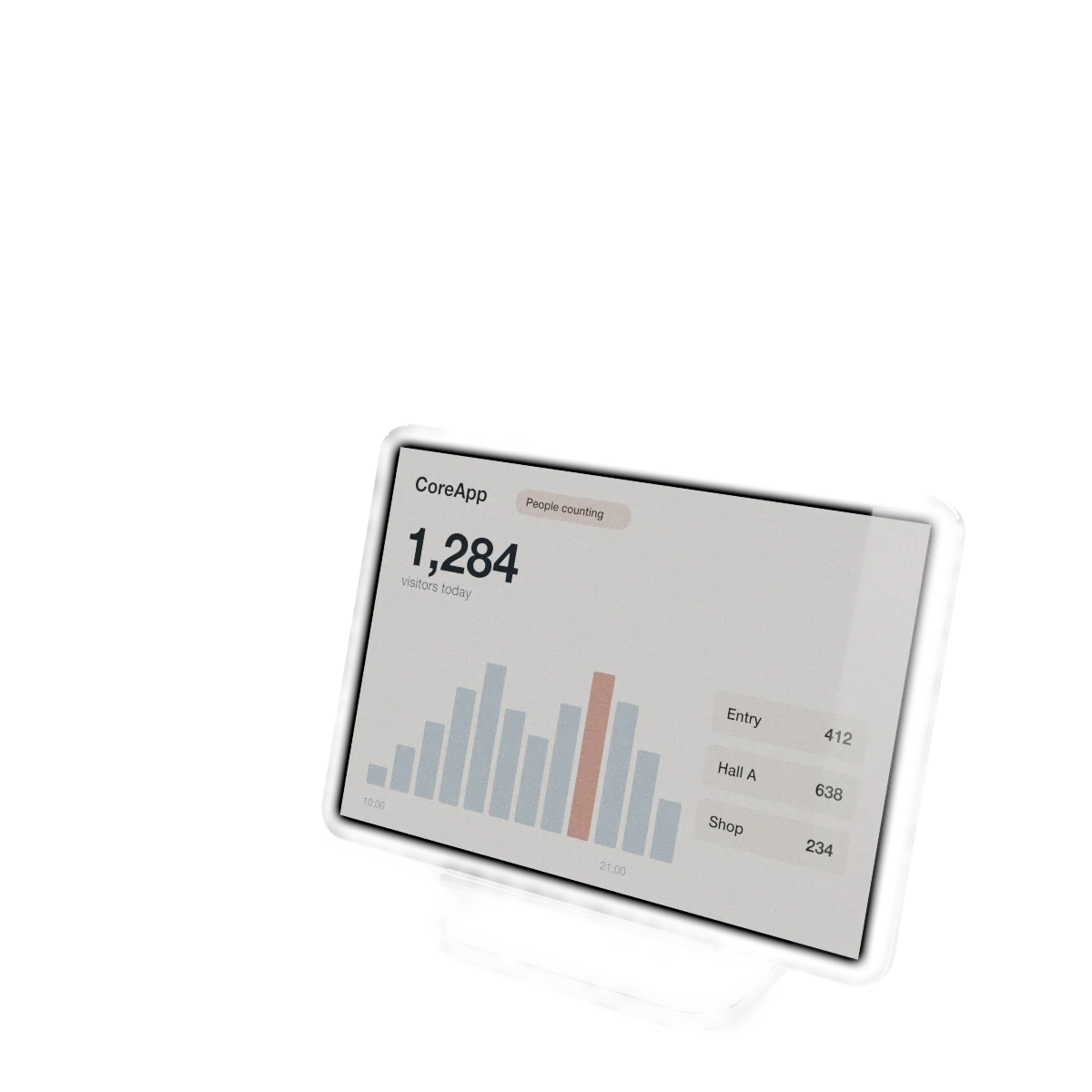
For example, people counting for a shop: how many came in today and which area is busiest, without writing code.
CoreApp reads the space, its zones and its channels directly and runs ready-made templates on them.
Any sensor in. Any application out. The box in the middle does not change.
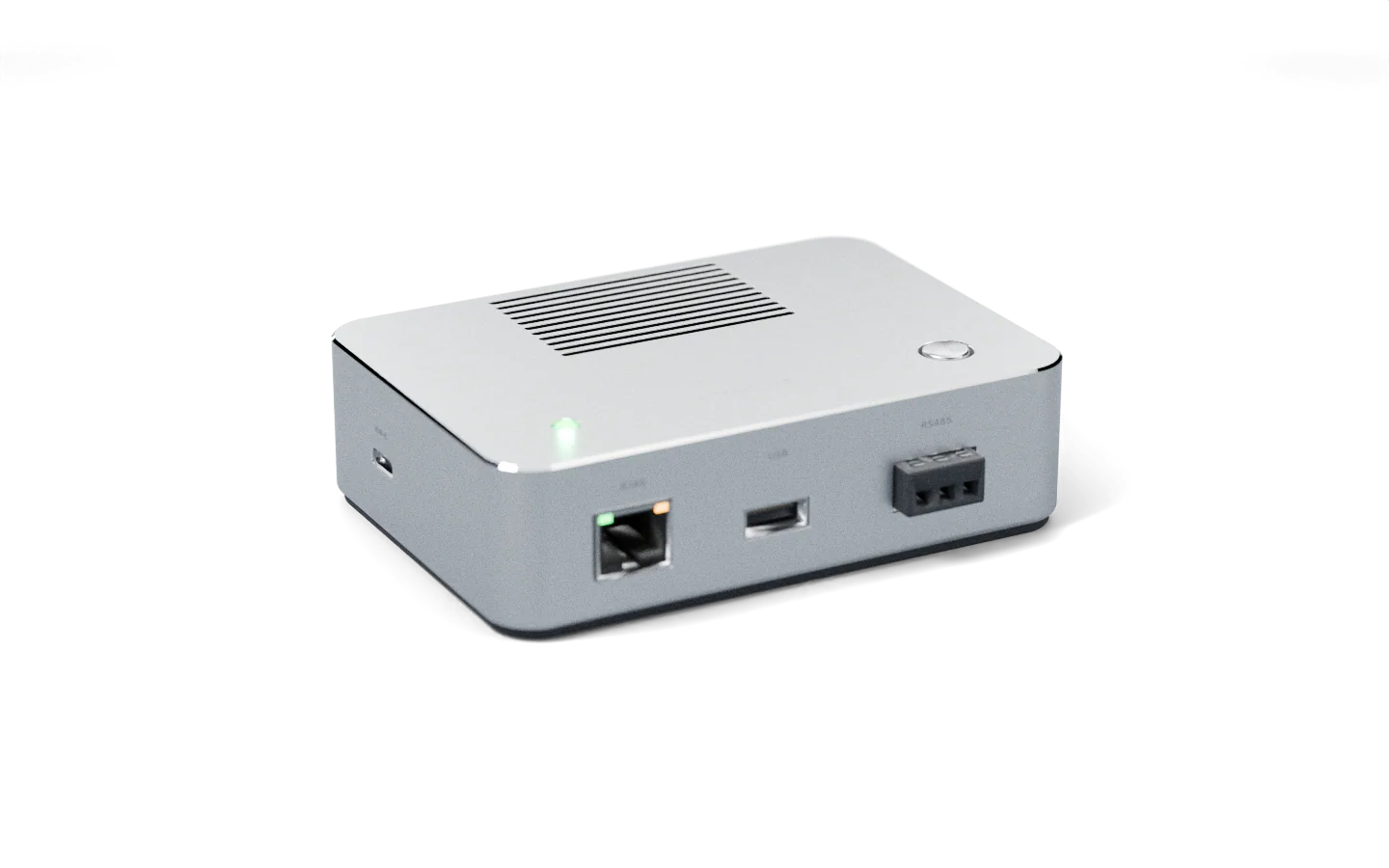
One box, four things to know.
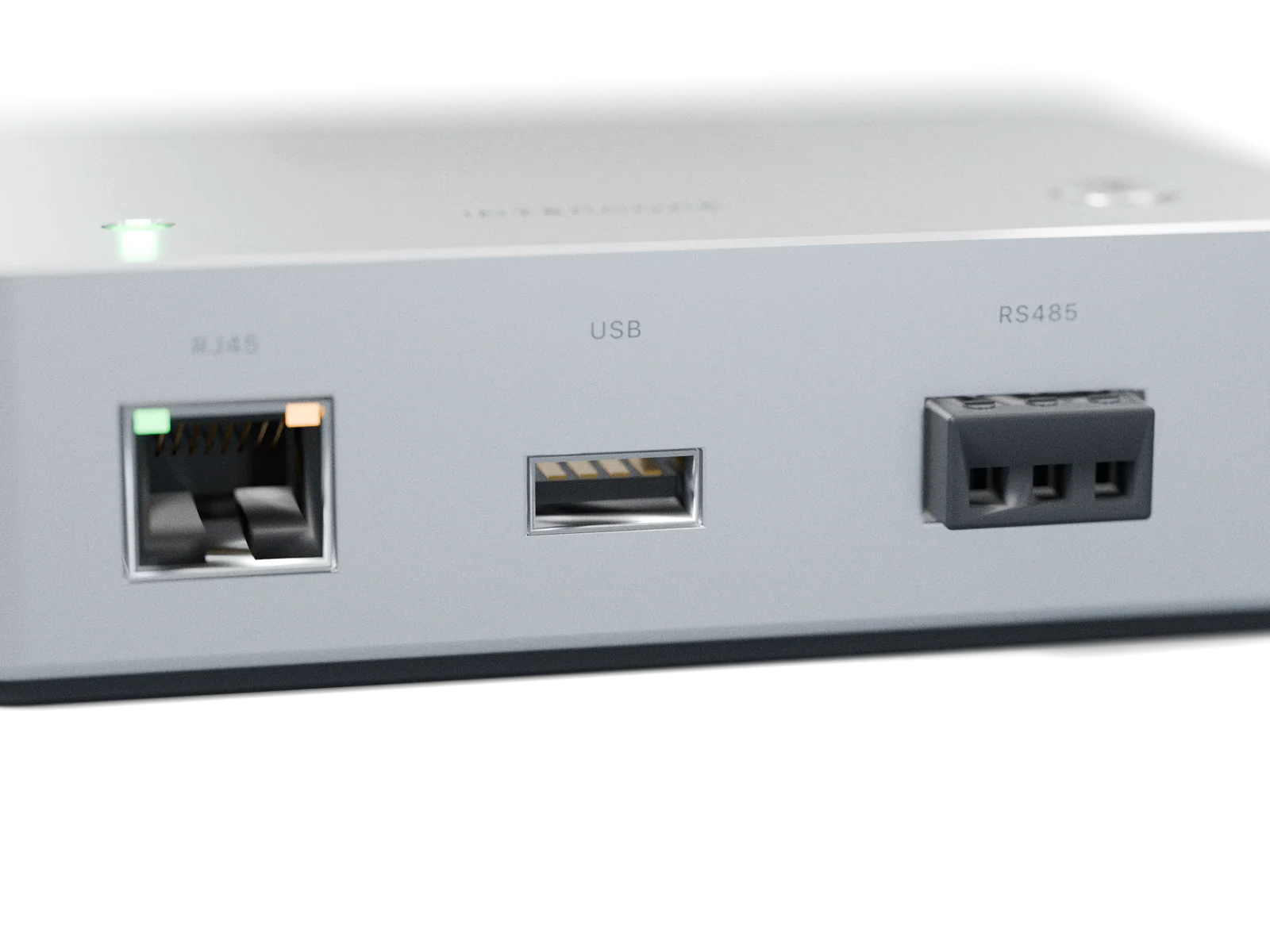
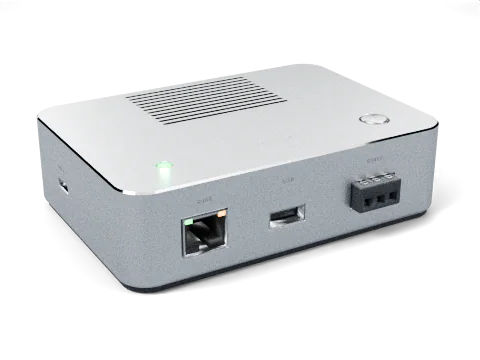
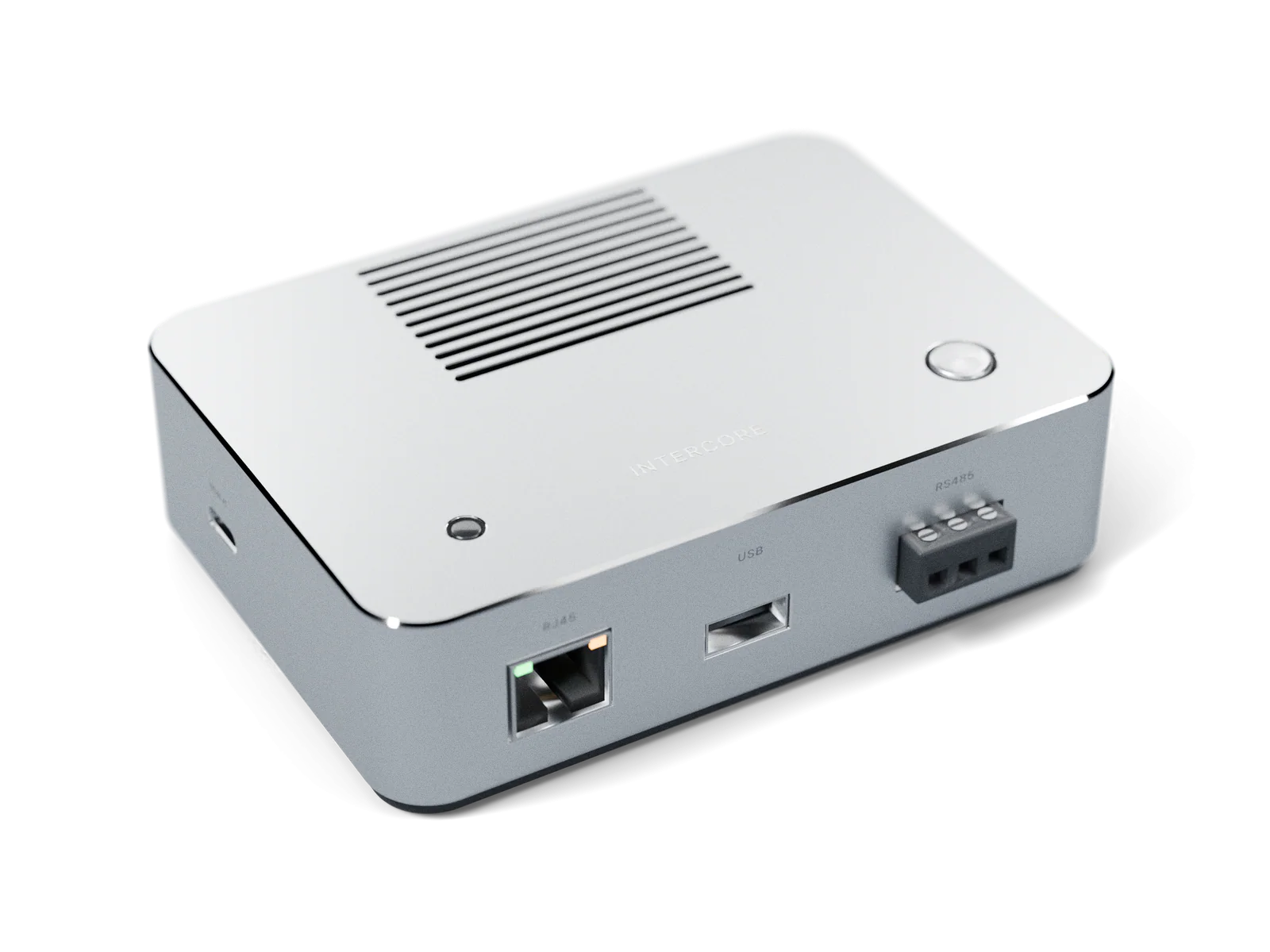
RJ45, USB-A and RS485 on the front, so a sensor plugs in on whatever it speaks: a LiDAR on Ethernet, a depth camera on USB, a button array on RS485. One device per box.
RJ45 · USB-A · RS485
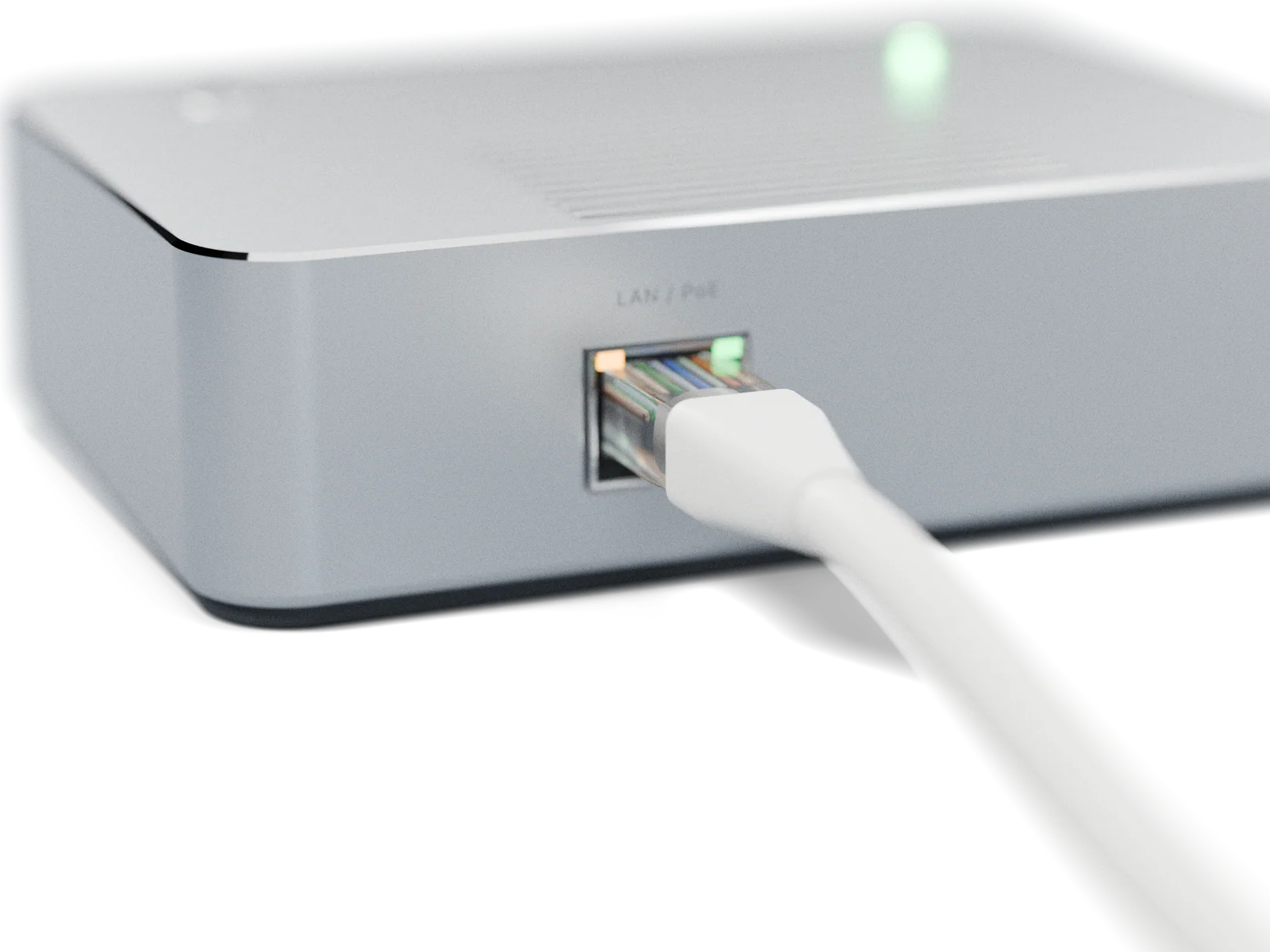
One network cable from the back to the PoE switch. Power comes in on it and data goes out on it, and the box powers the sensor from it.
RJ45 · PoE 802.3af
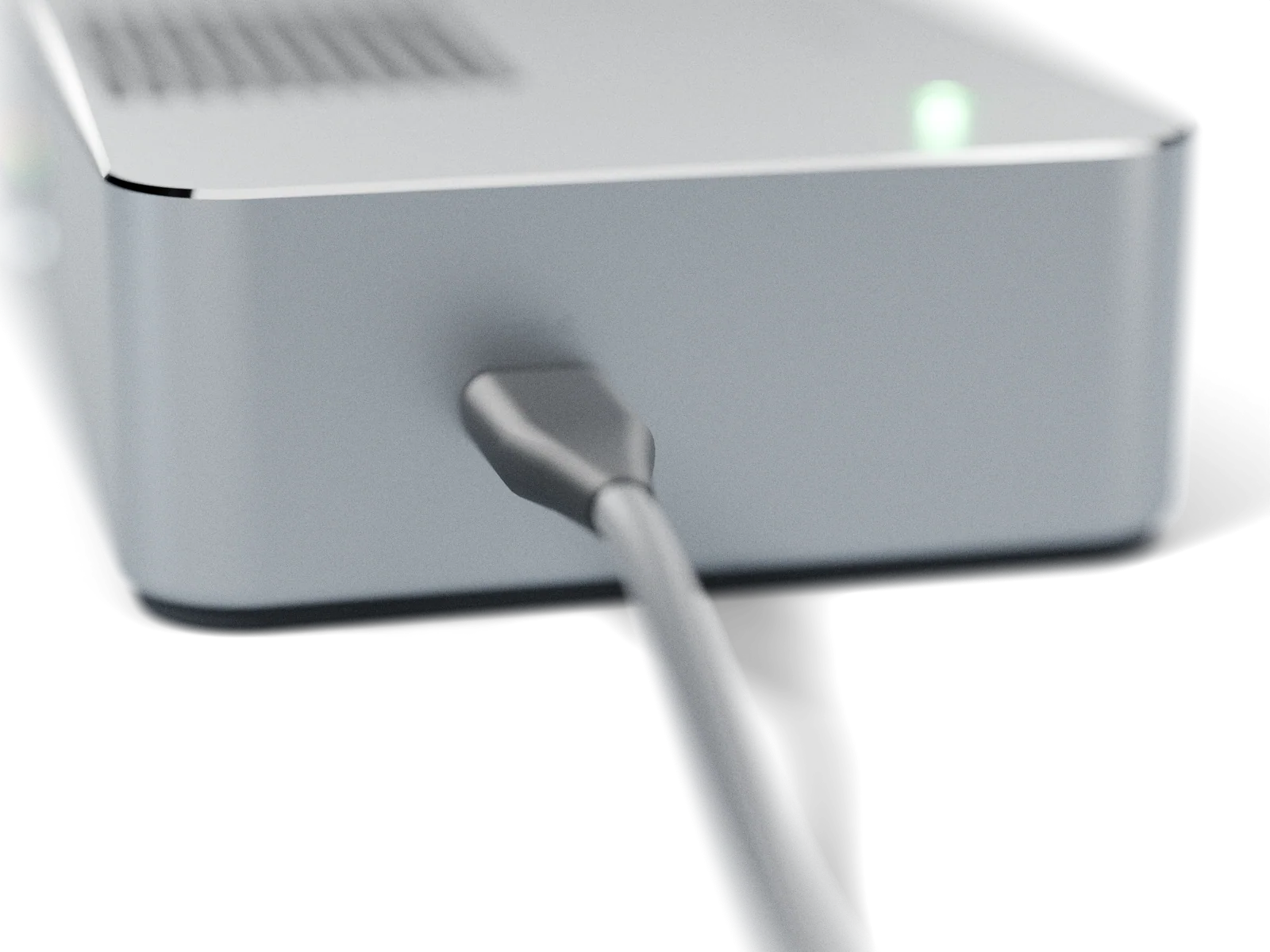
For updating the firmware, and for powering the box from an adapter where there is no PoE.
Firmware · Power
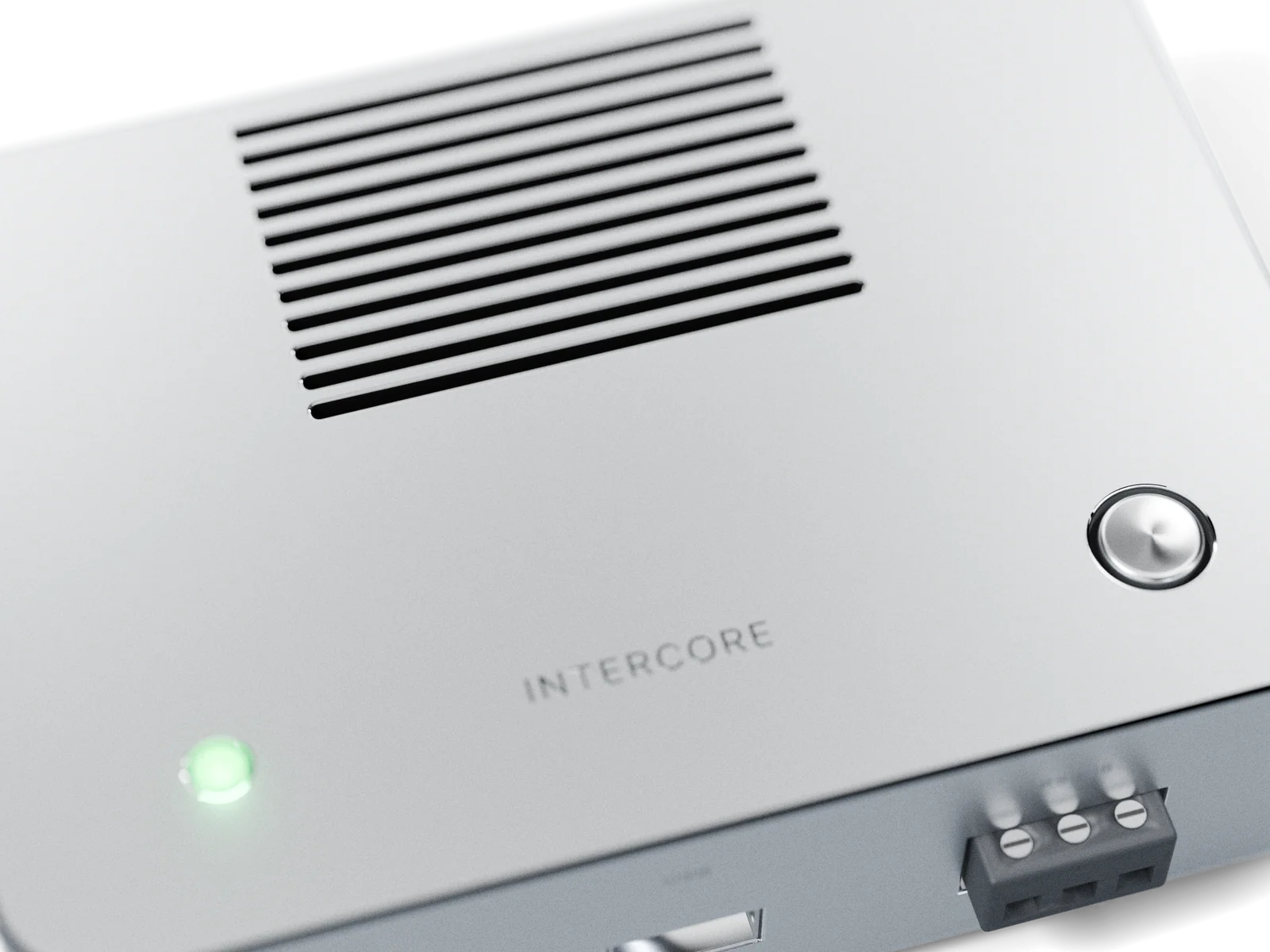
On top at the front, clear of the vents. The light says where the box is in the flow. A short press finds the box in CoreSpace; held for five seconds, it returns to factory settings.
Press: locate · Hold 5 s: reset
InterCore is not a sensor. It is what a sensor plugs into, so a project brings the sensors it needs.
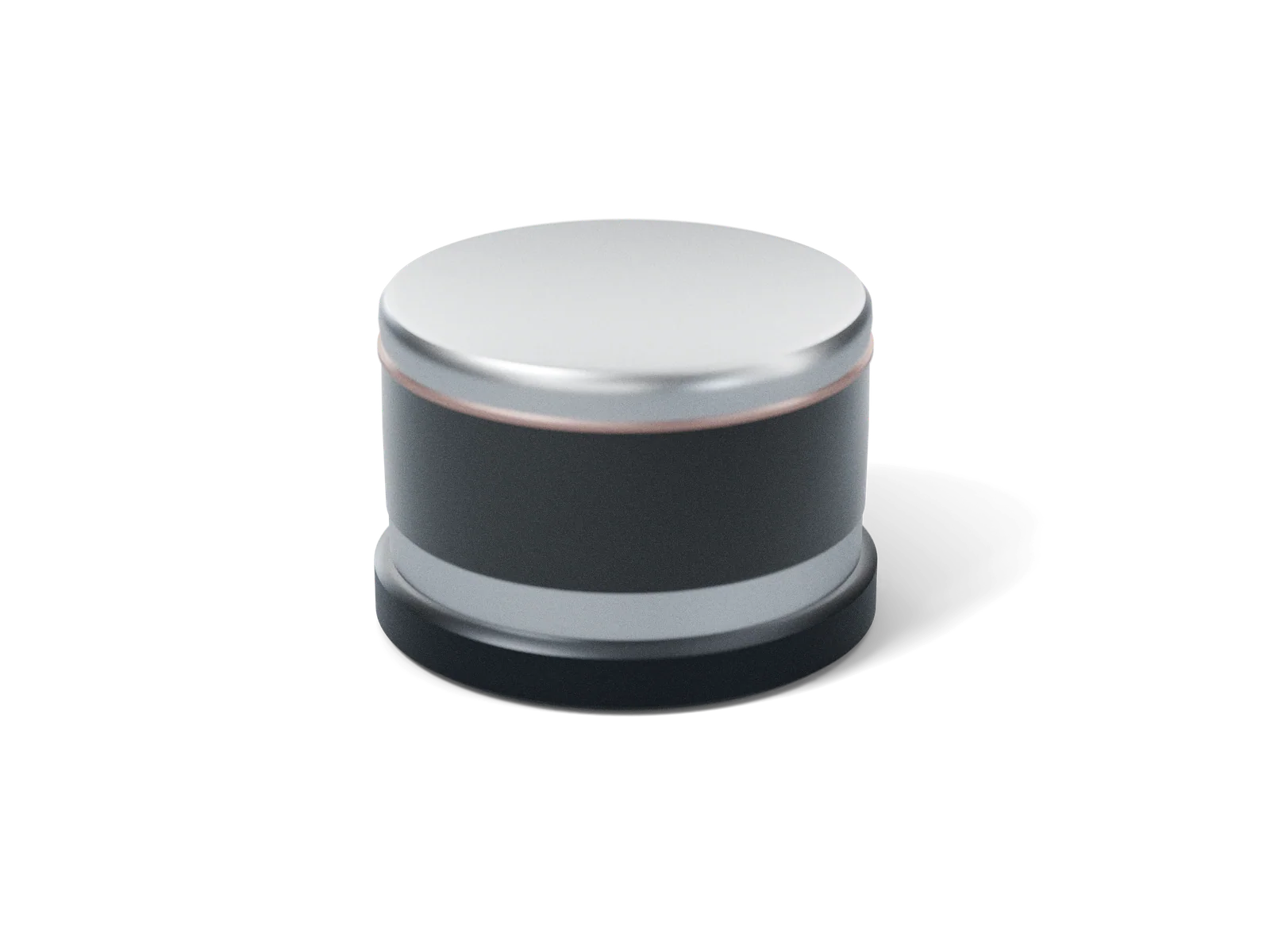
Reads the room as a ring of distances. 7.7 W over the cable.
Use it for: Floor projections, zone counts, where people walk
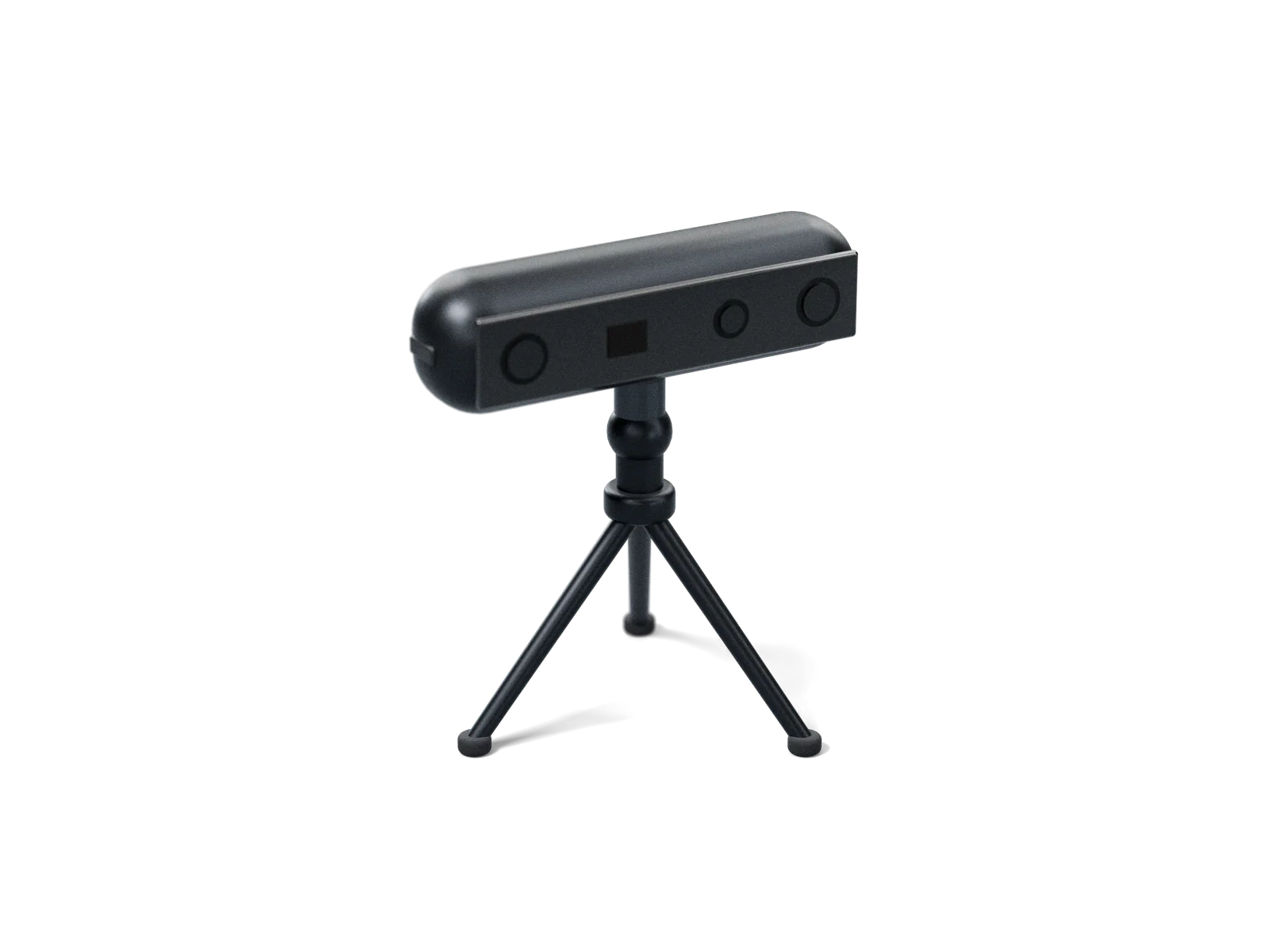
Sees a cone of the room, in depth. 2.5 W.
Use it for: Interactive walls and tables, reach and touch
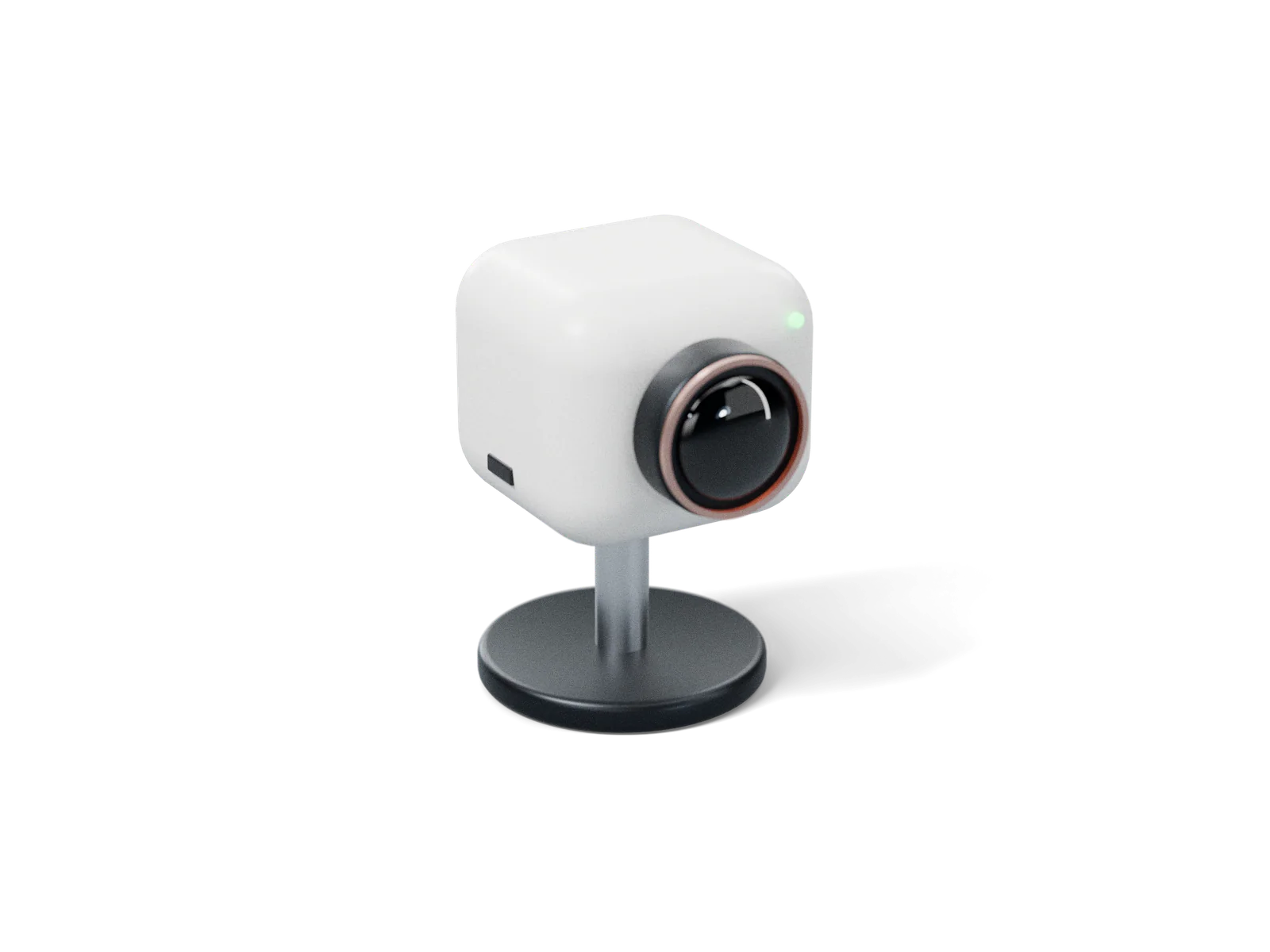
An ordinary camera. The picture stays on site; only anonymous positions leave.
Use it for: Counting people in a shop or a hall
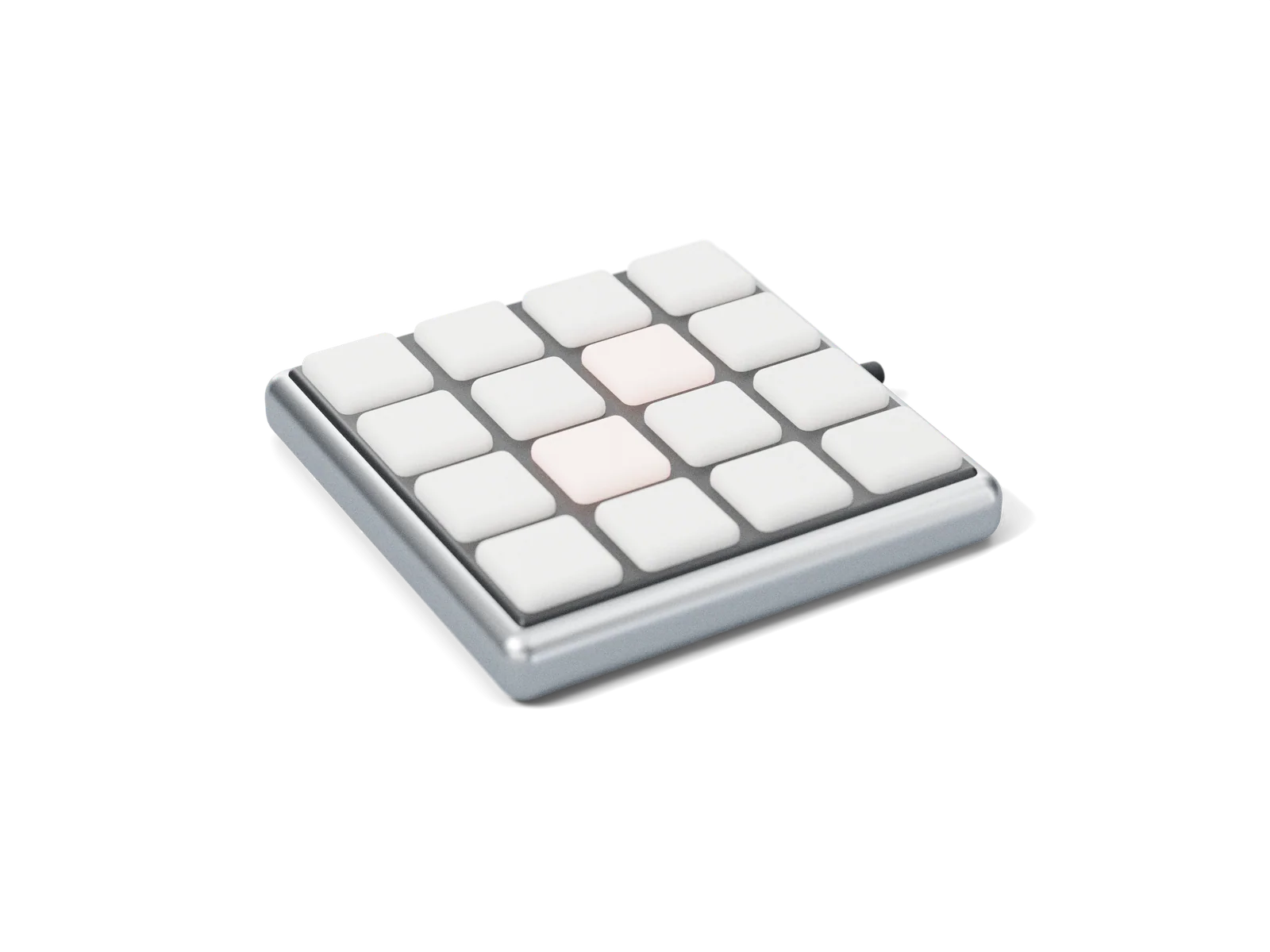
16 keys. No position to set.
Use it for: Kiosks, quiz and game stations
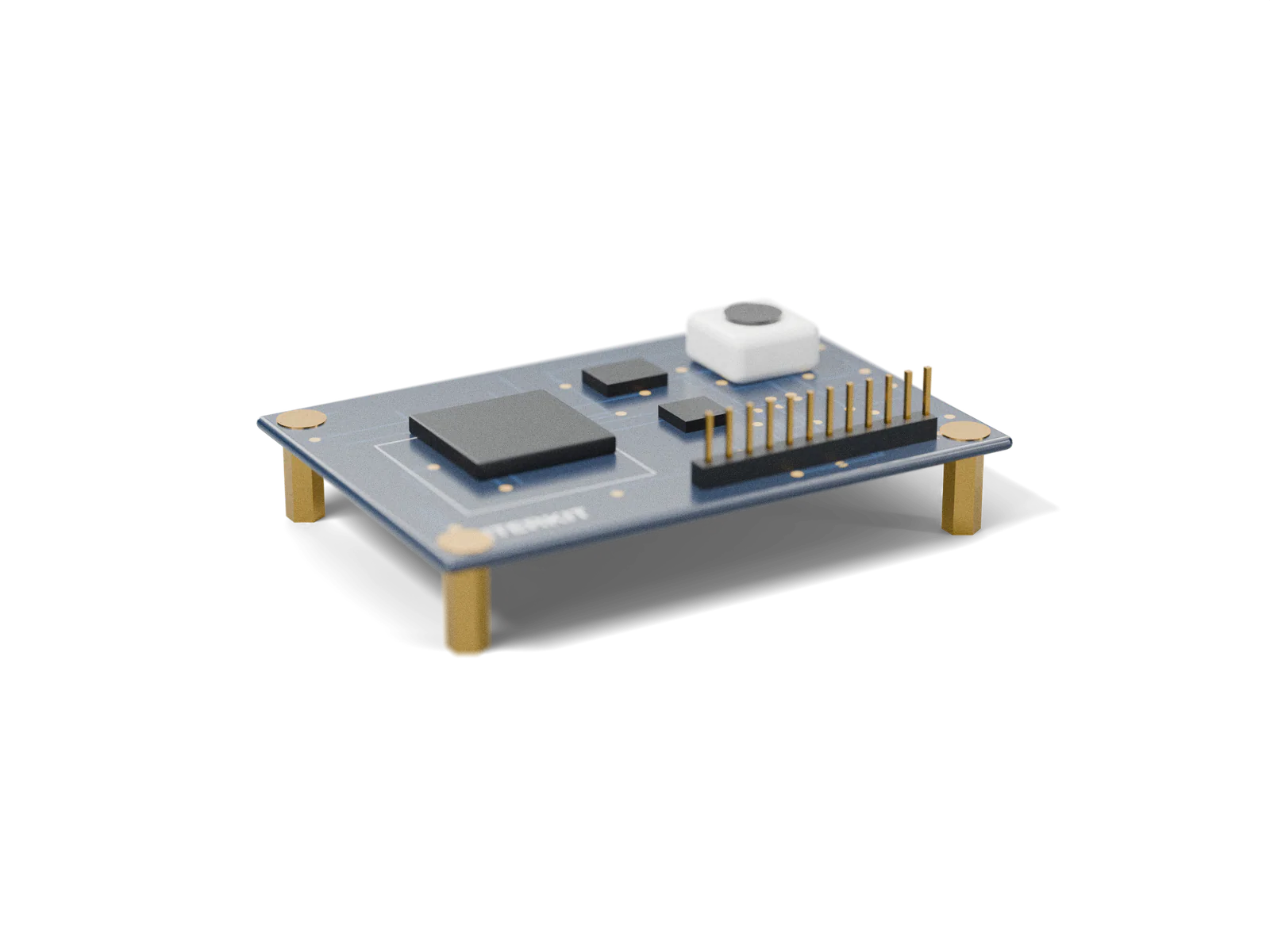
A small board made for one job: it reads a sensor, or switches something, and plugs into InterCore like any sensor.
Use it for: For example floor pads, break beams, knobs and faders, NFC readers, relays for lights and props
Any sensor on one side, any application on the other. The box and CoreSpace between them stay the same.
Anything that speaks OSC or WebSocket can take the channels today. The list grows with the protocols.
Seven states. The box and the screen always agree, so a glance at either tells you where a device is in the flow.
Five steps, each a tab in CoreSpace.
Sensor into InterCore, InterCore into the switch. About a second later a card marked NEW appears in Devices.
Press Identify to be sure which box it is; the light on the box blinks with it. Then Add to scene.
Put it where it is mounted in the 3D venue and aim it. Move it on the axes, or press Auto place.
With two or more sensors, one person walks through the overlap and the system aligns them.
Choose the application and the channels. Go live, and the tracking is on its way.
A device with no position of its own, such as a button array, goes straight from Add to Send.
The box, and what it works with.
RJ45, USB-A and RS485, on the front. One device per box.
A LiDAR on RJ45, a depth or ordinary camera on USB-A, the button array and InterKit modules on RS485.
One RJ45 on the back, to the PoE switch. Power and data on the one cable.
Powered over PoE, 802.3af, and powers its sensor: a LiDAR draws 7.7 W, a ToF depth camera 2.5 W.
On the side, for firmware updates and external power.
RGB, at the front of the top. Seven states, always the same as the light shown in CoreSpace.
One, at the front of the top. Press: find this box in CoreSpace, which flashes it white and selects it. Hold for 5 seconds: factory reset.
Anodised aluminium.
For example, a 16-port PoE+ switch with a 240 W PoE budget: 15 InterCores, the 16th port up to the host.
Out: OSC and WebSocket; TCP, MQTT and HTTP webhook planned.
InterCore is also the name of the whole system. The signal runs from InterKit to CoreApp; once the venue opens, CoreOps and CoreInsight watch over all of it.
Sensing modules made for InterCore: a 16-key button array, and small boards made for a project, such as floor pads, break beams, NFC readers and relays.
The box itself: one for every sensor, power and data on one cable.
The control software on the host: devices, venue, calibration and the channels out.
The application platform: ready-made templates, such as people counting with reports, on the channels CoreSpace sends.
Watches every machine on site: its health every five seconds, and an alert when one goes quiet.
Follows visitors through the space by camera, to show how the experience is used.
InterCore is planned and quoted for each venue. The boxes, the software, installation and calibration all come from us, and so can running it after opening.
Tell us how big the venue is, what needs sensing and which application the data goes to, and we come back with a plan and a quote.
Which sensors, and how many InterCores where. Where an off-the-shelf sensor will not do, an InterKit module is made for the project.
The InterCore system goes in on site: cabling, placement and calibration, and the channels connected to your TouchDesigner, Unreal, Godot or web page.
While the venue is open, CoreOps watches every machine and CoreInsight shows how the experience is used.
Studios, integrators and other organisations that want to bring InterCore into their own projects are welcome to talk to us about working together.
No. It is the box a sensor plugs into: it adapts the sensor’s interface, powers it, and carries its data and its power over one network cable to a PoE switch. Which sensor to use is the project’s choice.
One. A box for every sensor: more devices, more boxes, and nothing else changes. The button array and InterKit modules work the same way.
About a second after you plug it in, a card marked NEW appears in CoreSpace’s Devices tab. Press Identify to see which box it is, its light flashing with it, add it to the space, place it and calibrate, and it starts sending.
Plugging in, adding, placing, calibrating and choosing what goes out all happen in CoreSpace, without code. For TouchDesigner, Unreal, Godot or a web page, CoreSpace fills in the protocol, the port and an example; what the application does with the data is up to whoever builds it. Ready-made functions such as people counting come as CoreApp templates.
It depends on the venue, and is planned with it. For example, a 16-port PoE+ switch with a 240 W PoE budget takes 15 InterCores, its 16th port up to the host.
Its data goes over the network, so it always needs one. Without PoE it can take external power through the USB-C on its side; a PoE switch is recommended, power and data on one cable.
Place each sensor in CoreSpace where it is installed, then have one person walk through where the sensors overlap, and the system aligns them.
No. Only anonymous coordinates go out, never images.
InterCore is quoted per project: by the number of sensors, the size of the venue, the applications it feeds, and whether you want it run after opening. Tell us about your venue and what you need, and we will come back with a plan and a quote.
Tell us about the venue, what needs sensing and what the application needs, and we will come back with a plan and a quote. Studios and integrators are welcome to talk to us about working together.
[email protected]